
Sign Submission With Smartcard
You can access a signing action via the Action List.
Alternatively, if you create a new submission and have the “Sign” group role, the signing action will be automatically displayed after the submission has been saved.
The default method of signing using a smartcard is by using software supplied by Gemalto. You can also use the Paygate plugin if you’ve installed it for other parts of Paygate.
Sign Submission Using WebSigner
This assumes you have installed WebSigner by Gemalto which will have been provided by your bank.
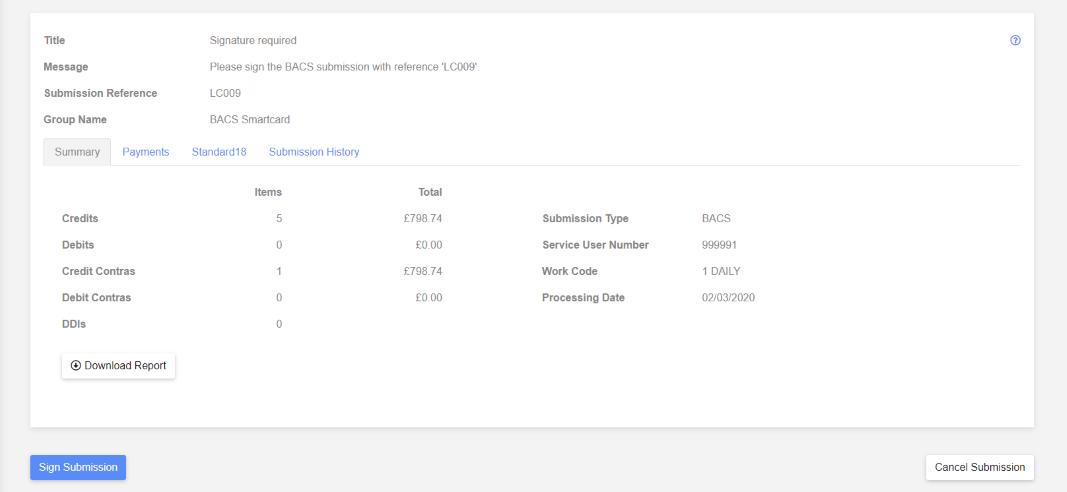
Click “Sign Submission” to display the WebSigner signing window.
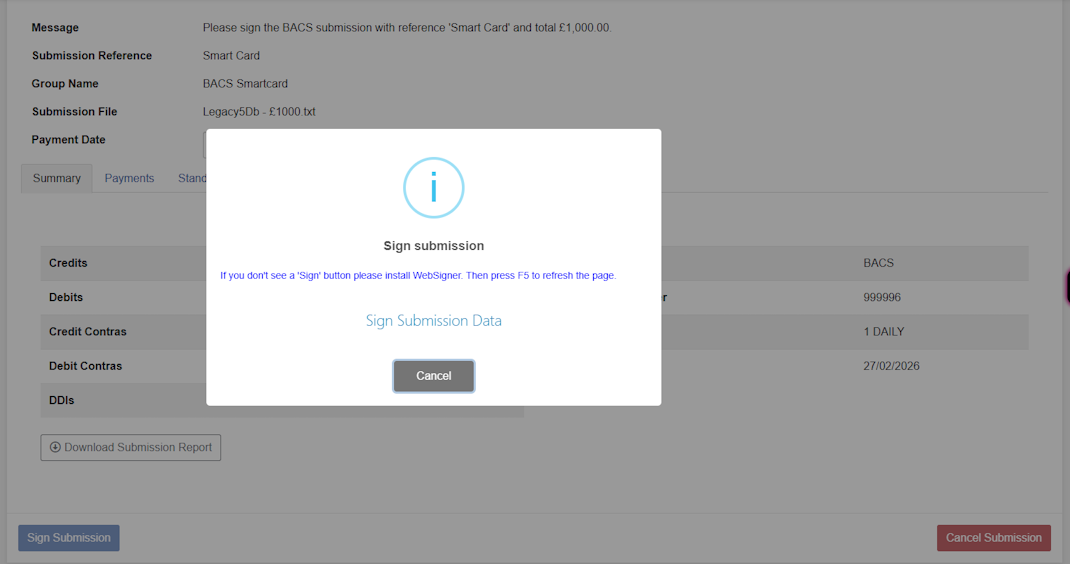
Click the “Sign Submission Data” button to display a prompt asking you to check your PIN pad reader.

Now enter your smartcard PIN via the PIN pad reader and click “OK”.
When the correct PIN number has been entered you will be returned to either the “Action List” page. Alternatively, if you have the “Approve” group role, the approve action will be automatically displayed after the submission has been signed.
Sign Submission Using the Paygate plugin
There are two versions of the Paygate plugin, one for Internet Explorer and one which works with Chrome and Firefox. The plugin enables you to sign larger files with a smartcard which exceed the eSigner limit.
Clicking the “Sign Submission” button will display the submission data in a dialog window as shown below.
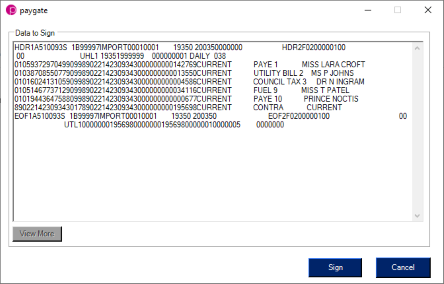
Clicking the “Sign” button will show the PIN entry dialog as shown below. NB. It can take a few seconds for the PIN entry dialog to appear.
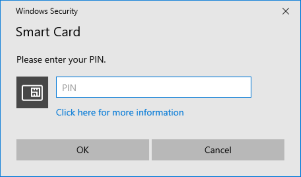
Now enter your smartcard PIN and click “OK”.
When the correct PIN number has been entered you will be returned to the “Action List” page. Alternatively, if you have the “Approve” group role, the approve action will be automatically displayed after the submission has been signed.