
Import Payer
Introduction
Maintaining and importing Payer data can be performed either using the pages in the Payer section, or alternatively done in bulk using the Import Payer screen:
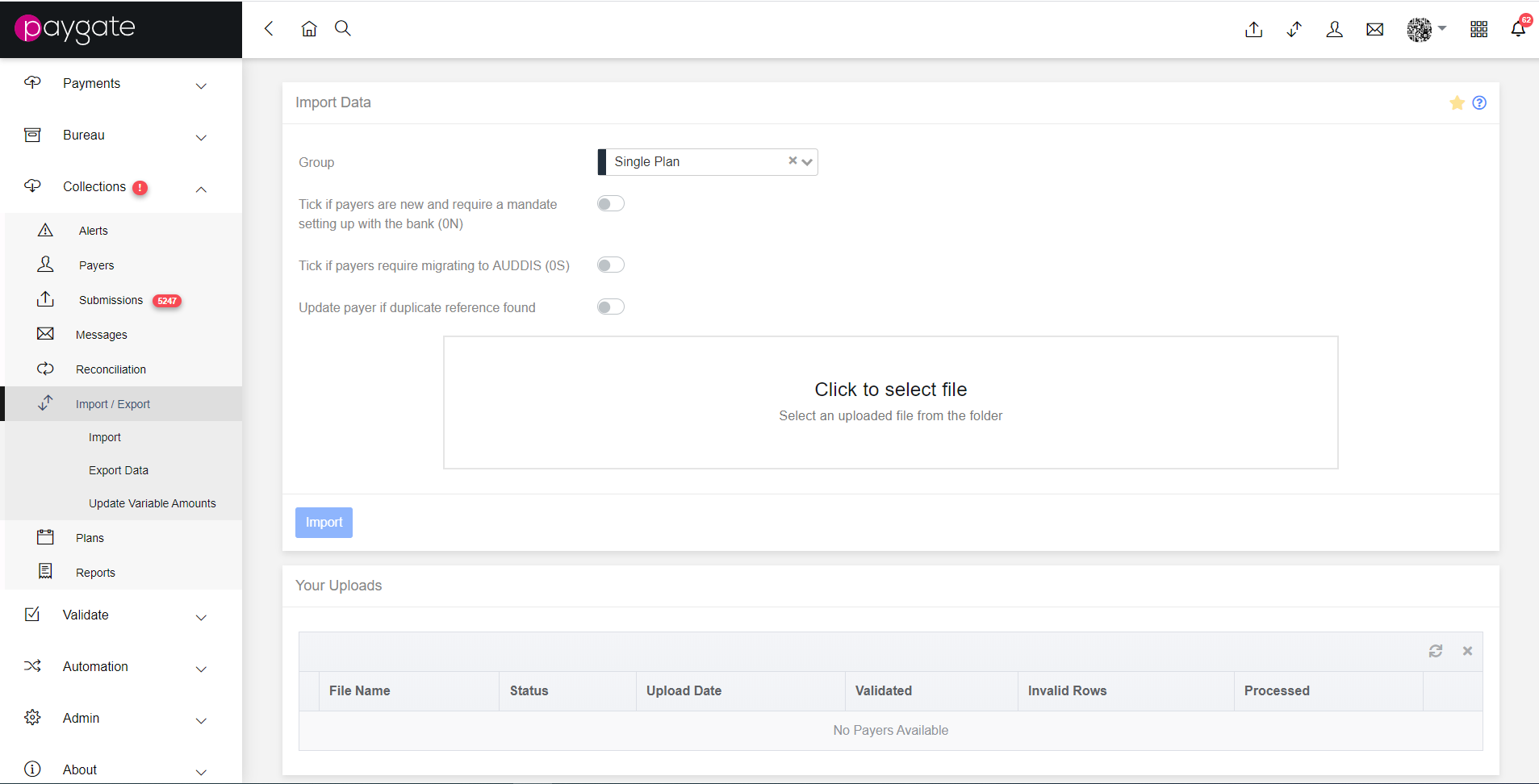
There are a number of options available when importing payers:
- Group - The group the payers are being imported to
- Tick if payers are new and require a mandate setting up with the bank (0N) - triggers the AUDDIS instruction to create a new payer.
- Tick if payers require migrating to AUDDIS (0S) - triggers the AUDDIS instruction to migrate a payer.
- Update payer if duplicate reference found - When false, if a payer reference is already present in the system, the import will fail due to a ‘Duplicate Reference’, otherwise the existing payer with that reference will have it’s data updated.
- Tick if payers should have a Payer Portal User created upon import - creates Payer Portal account for imported payers if the Customer has that licenced feature enabled.
Depending on how your groups are configured to import files, selecting a file to upload can be done using one of three ways:
Restricted File Browser
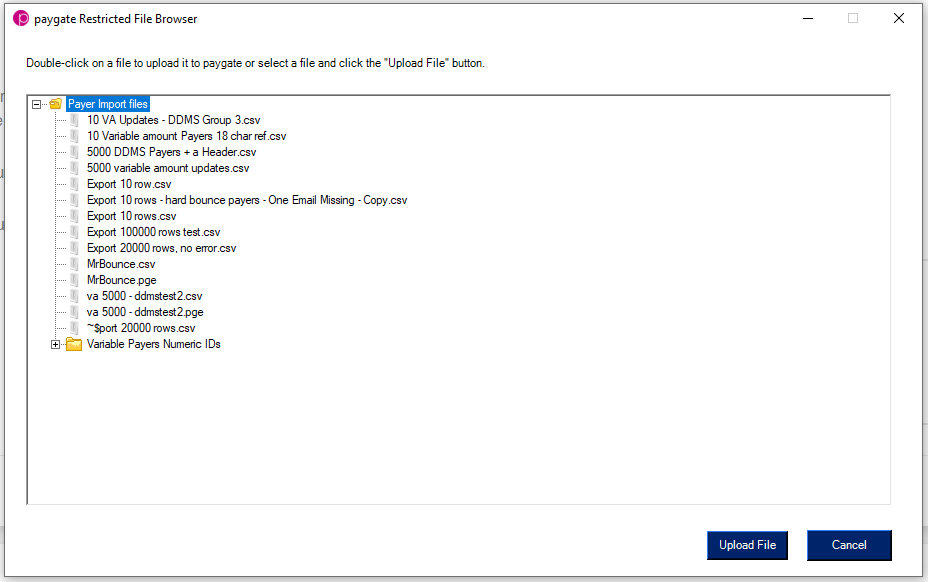
The restricted file browser is configured to only access files from a specified folder on the user’s computer. This dialog is loaded by clicking on the box with “Click to select file” labelled on it.
Server File Browser
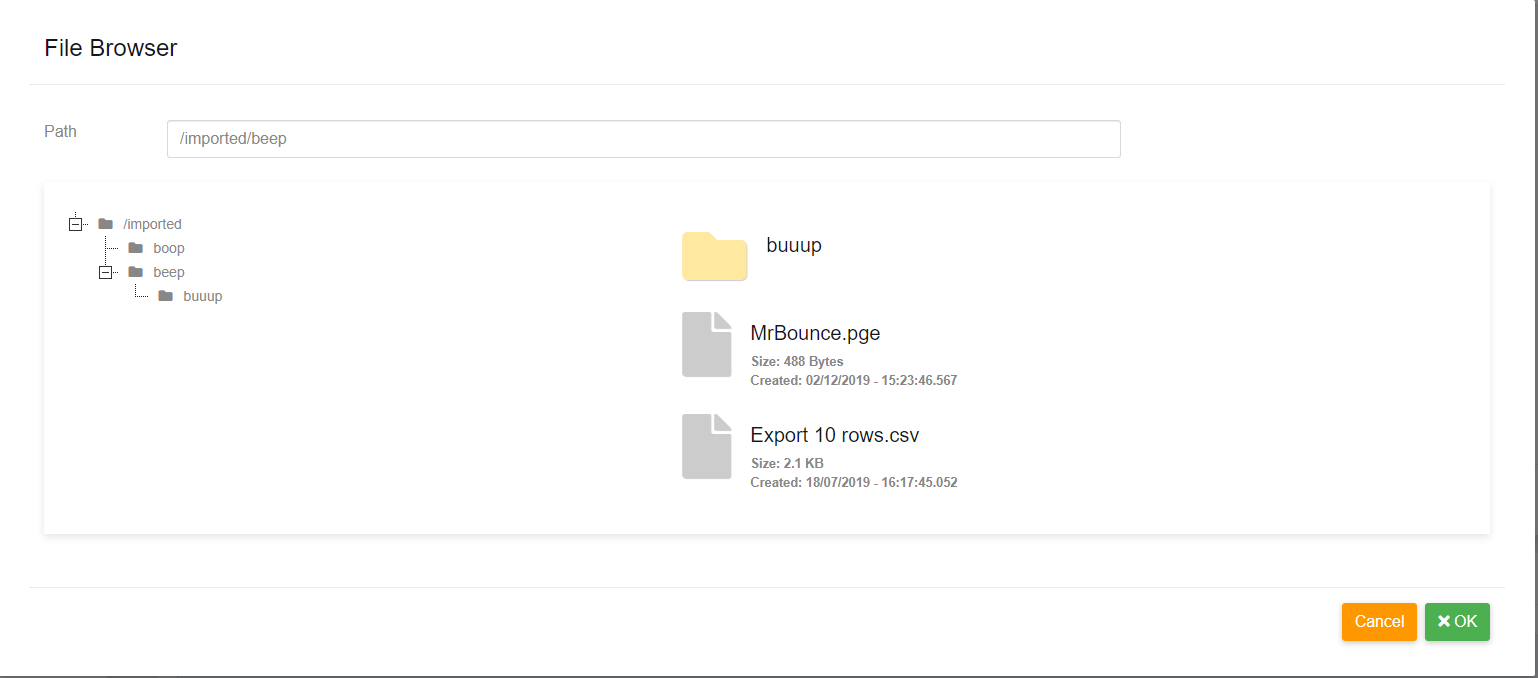
The server file browser points to uploaded files in the customer’s specific public data folder, and has had the data placed there using an external process, such as Paygate Agent or a Workflow. This dialog is loaded by clicking on the box with “Click to select file” labelled on it.
File system Browser
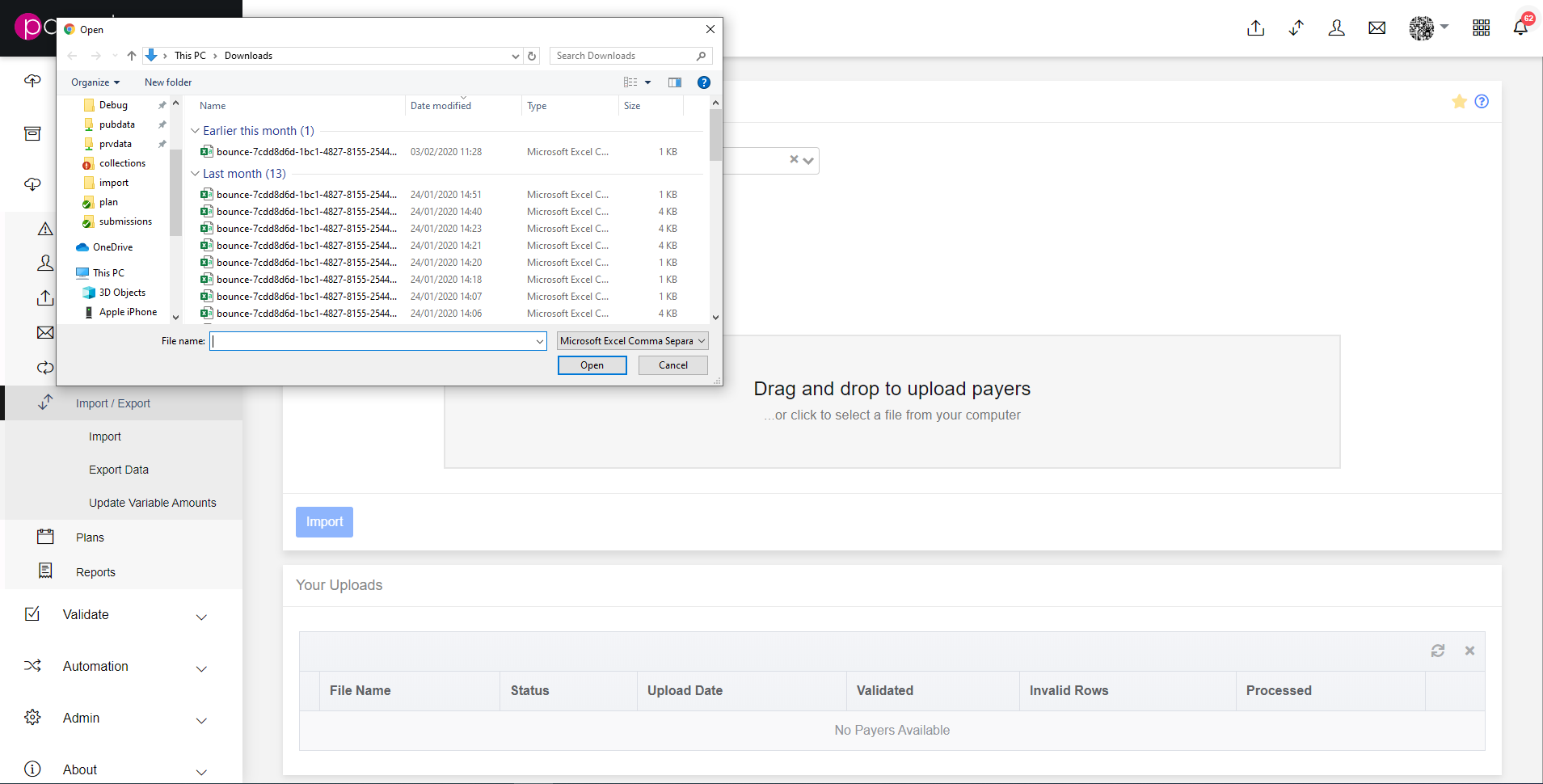
Groups that allow file system access will be presented with different text in file file upload box, “Drag and drop to upload payers …or click to select a file from your computer.” This will allow file system access by clicking it, or by dragging a file from the user’s desktop or folder.
Uploading
Once a file has been selected, it will be visible in the outlined box in the dialog. Multiple files can be added this way.
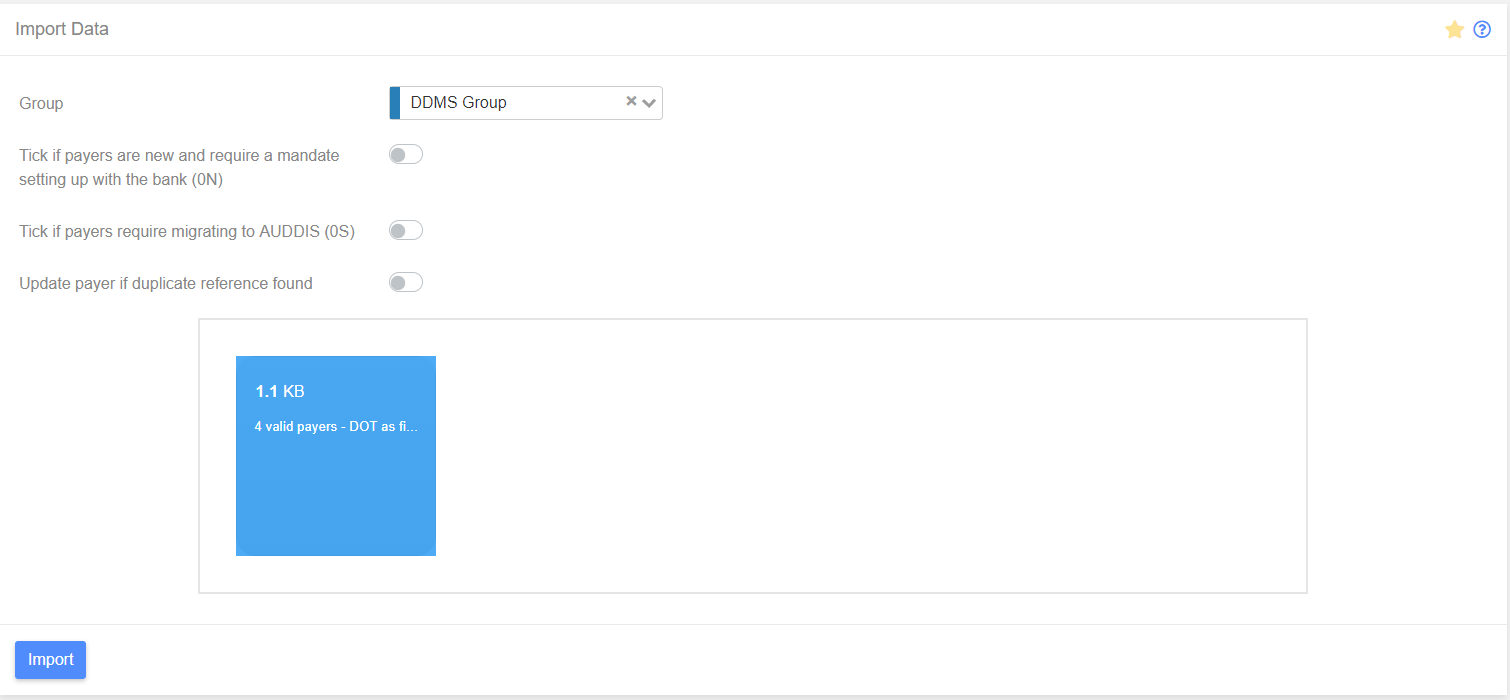
Uploading a file will also enable the “Import” button, when clicked the button will trigger the upload process, which will import the payers into the system. Imported files will be visible in the table below, where they will be queued, then validated then processed.
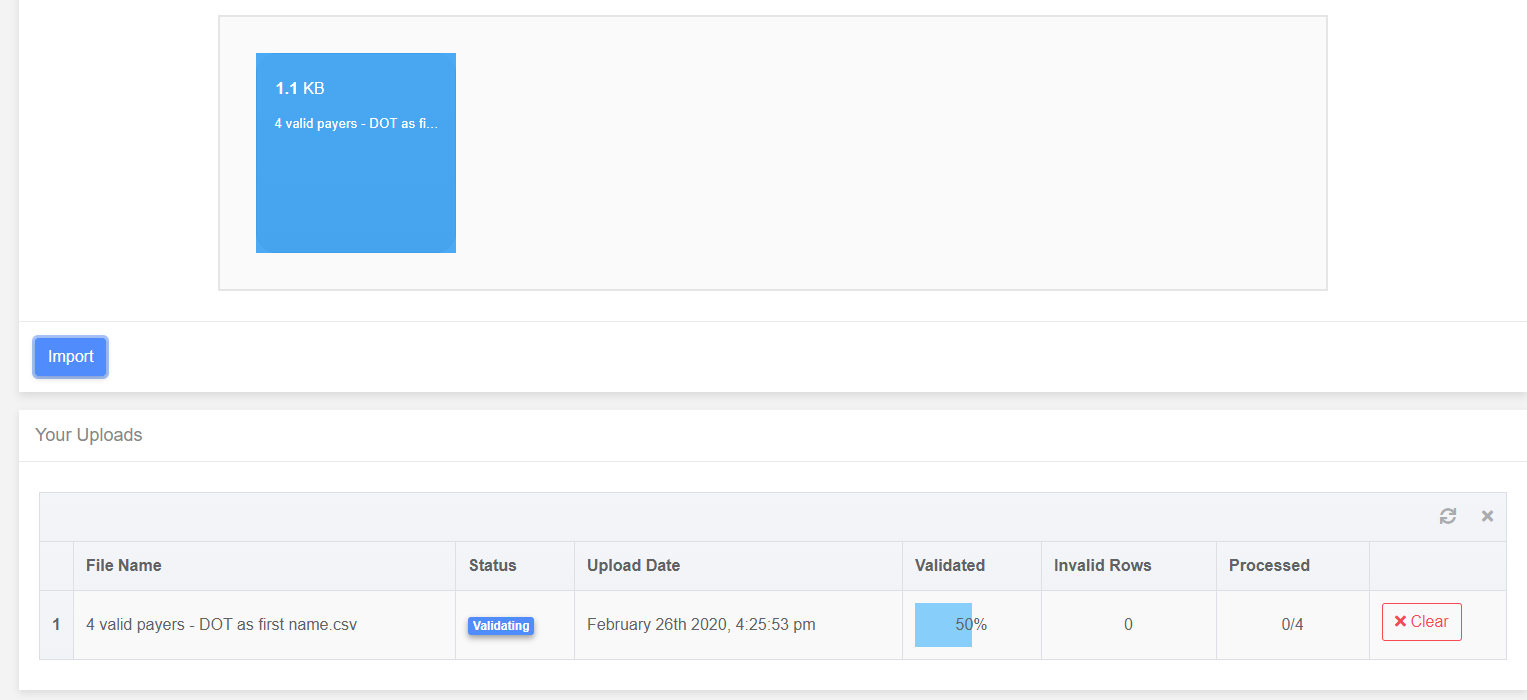
Leaving the page during this process will not terminate the upload, and upon success or failure and action will be generated for the customer.
Import Details
Clicking on the uploading row will take the user to the Import Details page, that has summary data on the upload, as well as validation messages and failed CSV rows that can be saved and then re-uploaded.
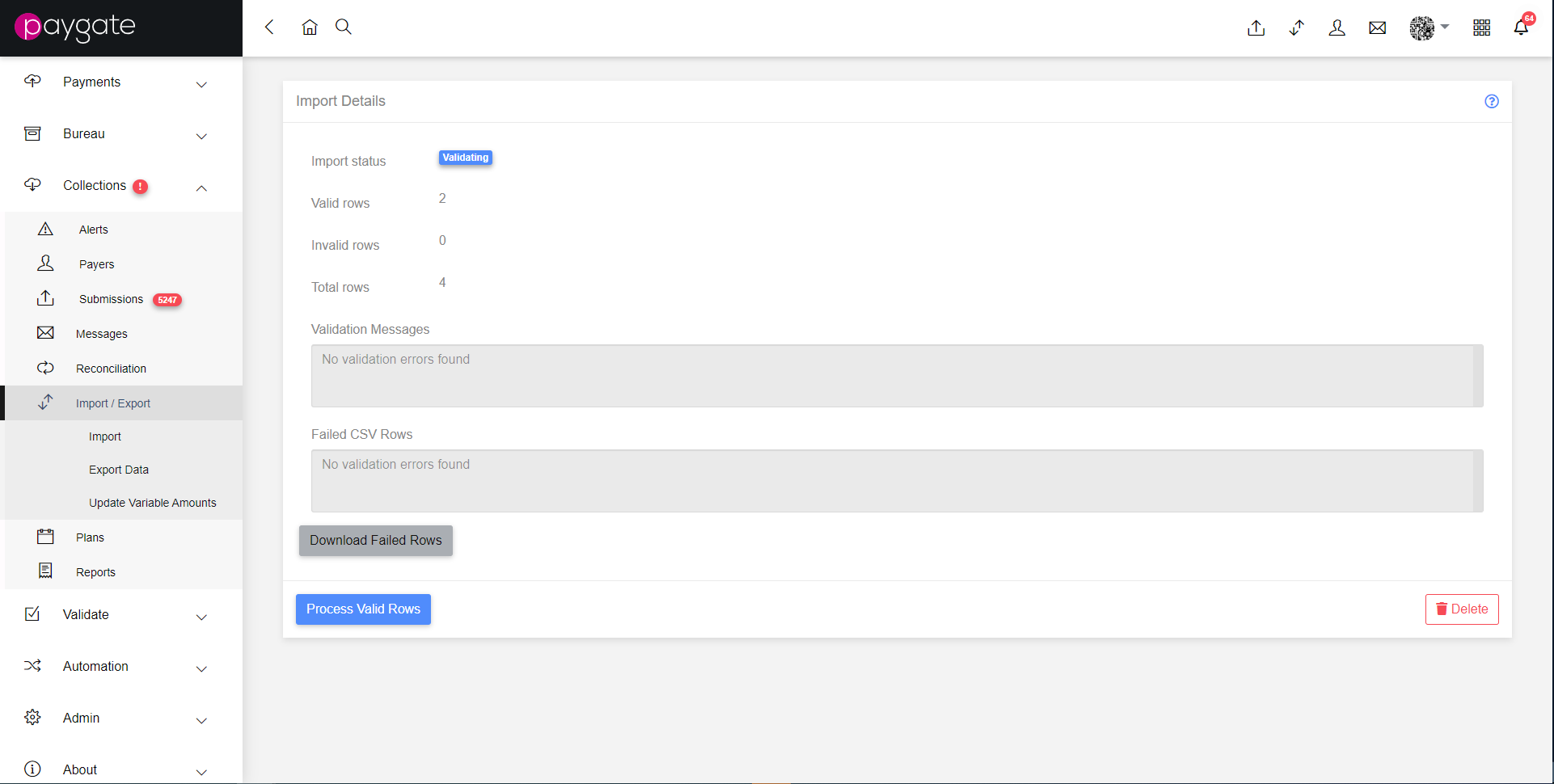
In situations where an upload has been paused due to validation issues, it may be resumed using the “Process Valid Rows” button, excluding any invalid rows from the import process.
File Format
The uploaded file needs to be a CSV, and included the following data, in the order below.
- Sortcode - presented as a six digit number.
- Account Number - a number between six to eight digits long.
- Account Holders Name - Must be under 30 characters long.
- Status - a number between 0 and 3
- StatusReason - one or two digit number
- Title - a number between 0 and 6
- Mr
- Mrs
- Miss
- Ms
- Mx
- Dr
- Other
- First Name - under 30 characters long
- Surname - under 30 characters long
- Reference - under 18 characters kibg
- Address Line 1 - under 40 characters long
- Address Line 2 - under 40 characters long
- Address Line 3 - under 40 characters long
- Address Line 4 - under 40 characters long
- Postcode - under 30 characters long
- Email - under 254 characters long
- Telephone number 1 - under 30 characters long
- Tel number 2 - under 30 characters long
- Mobile - under 30 characters long
- Reserved - Leave blank
- Custom Field 1 - under 64 characters long
- Custom Field 2 - under 64 characters long
- Custom Field 3 - under 64 characters long
- Custom Field 4 - under 64 characters long
- Custom Field 5 - under 64 characters long
- FirstAmount - a number a maximum of 18 numbers long before the decimal point, and two digits following the decimal point.
- LastAmount - a number a maximum of 18 numbers long before the decimal point, and two digits following the decimal point.
- RegularAmount - a number a maximum of 18 numbers long before the decimal point, and two digits following the decimal point.
- GiftAid - “TRUE” or “FALSE”
- First Payment Date - Presented as DD/MM/YYYY
- Ordinal - a number between the following ranges:
- Monthly Recurrence - 1 and 28
- Weekly Recurrence - 1 and 7
- Yearly Recurrence - 1 and 365
- Step - a number between one and three digits.
- RecurrenceType - “Weekly”, “Monthly” or “Yearly”
- RecurrenceEndType - “OneOff”, “UntilDate”, “UntilNumberOfPayments”, “Ongoing” or “Adhoc”
- UntilDate - Presented as DD/MM/YYYY
- TotalPayments - a number between one and three digits long
- PlanName (optional) - the name of a plan available to the customer.