
Payer Creation
Introduction
Creation of a payer is performed using the Create Payer Wizard. The Create Payer Wizard is accessed from the Manage Payers Screen. Firstly, the group into which the payer will be added must be selected:
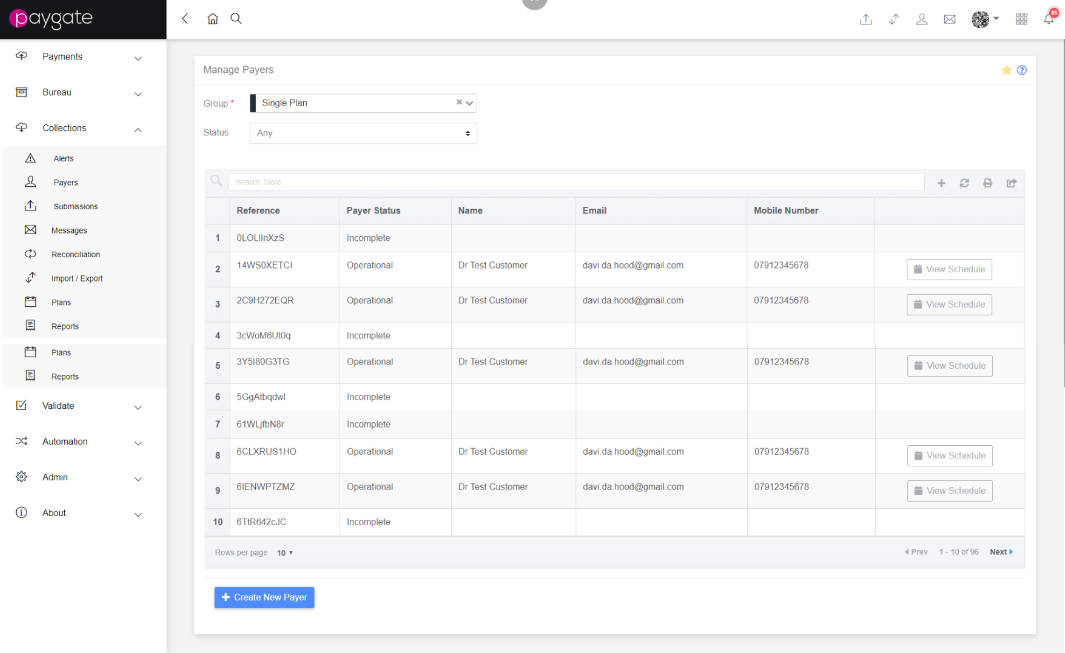
The Create Payer Wizard can be accessed in two ways from the manage payers screen, firstly from the Create New Payer button at the base of the page, and also from the ‘+’ button at the top of the payer table.
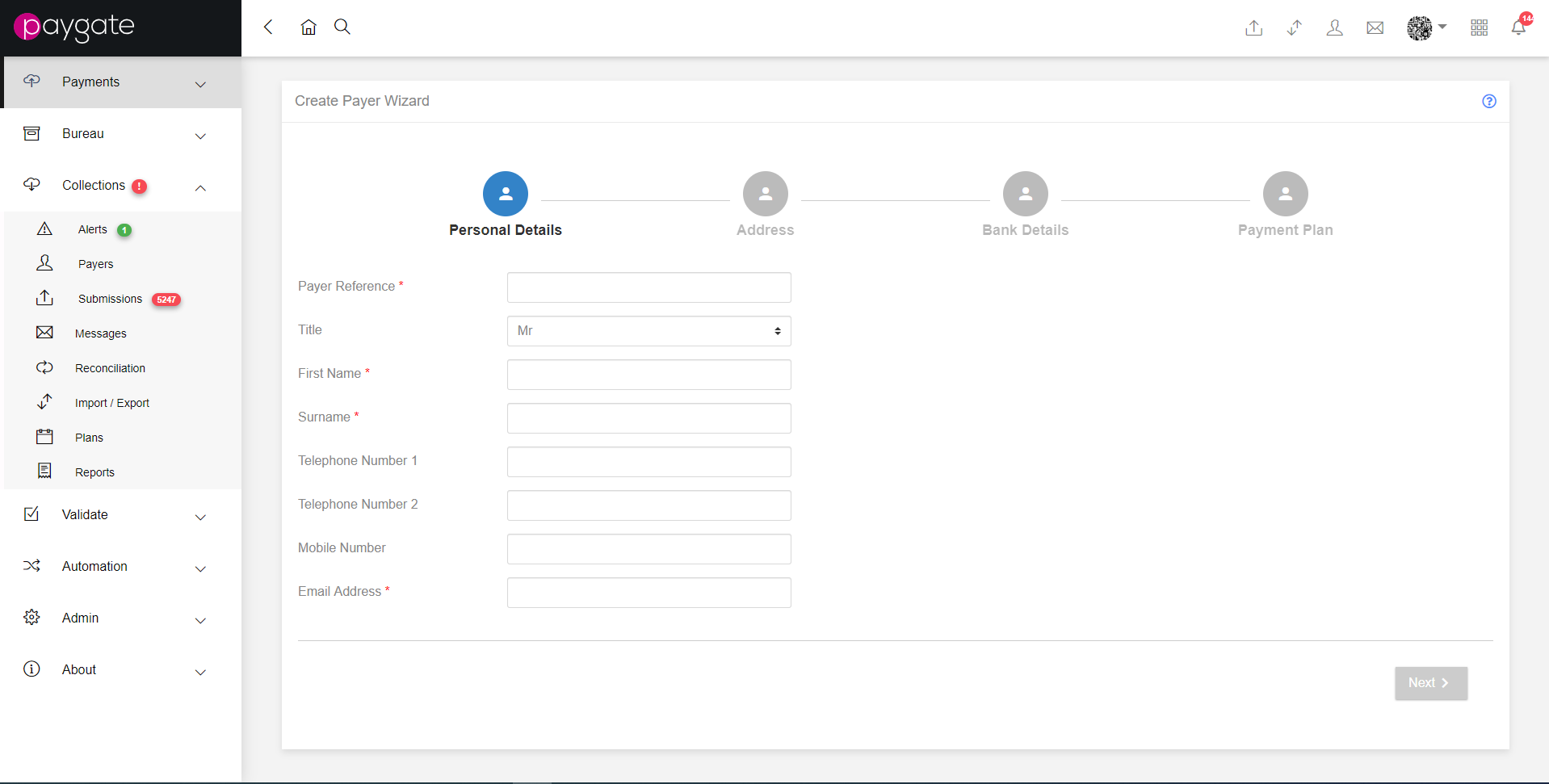
The first step of the wizard is for populating payer details, including the Payer Reference (Payer Groups configured to auto generate payer references will omit this field). If the user will be warned if they provide a reference that exists in the system already, and they will be unable to progress through the wizard. If the user provides an email address that already exists within the system, they will be warned that this is the case but it will not prevent progress through the wizard.
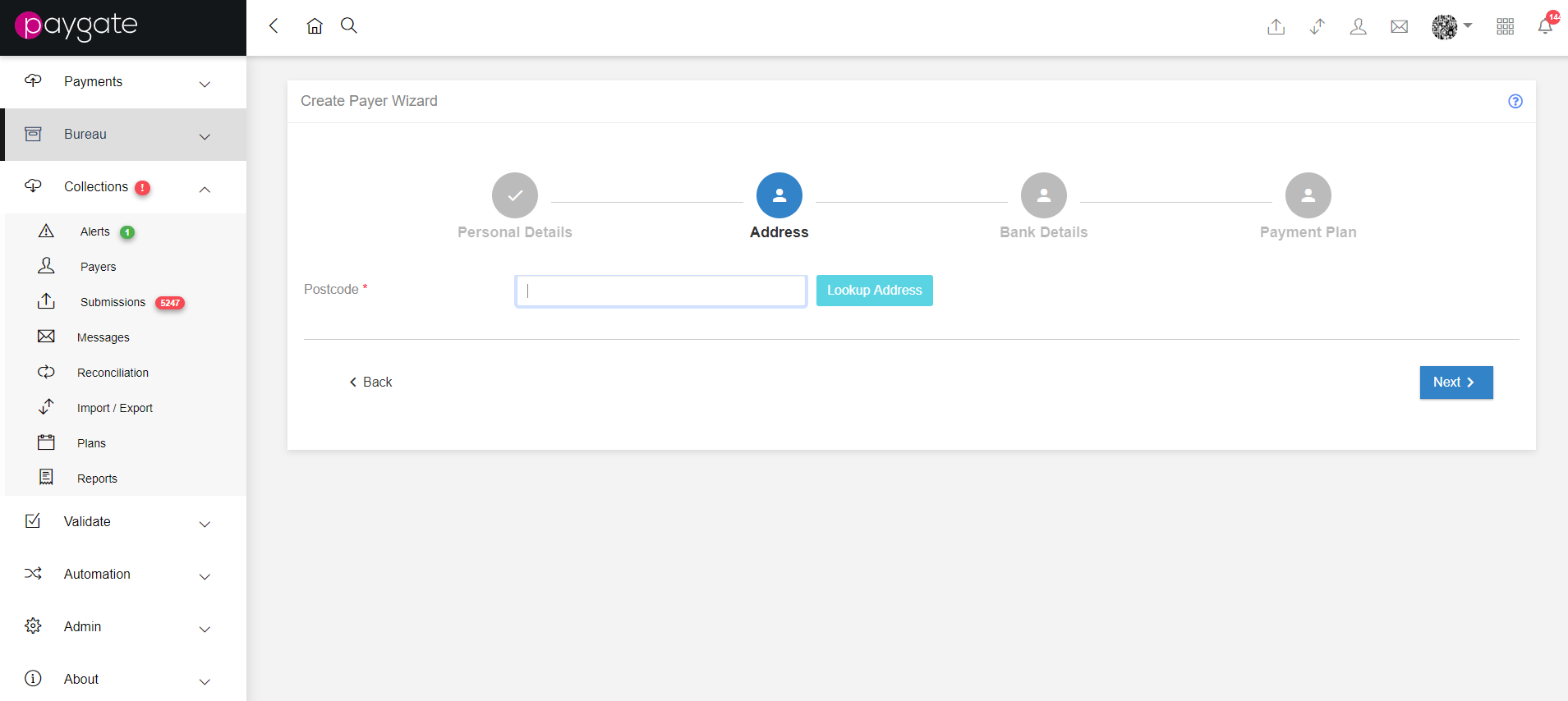
The second step of the wizard is used to populate the payer address, firstly by allowing the user to provide a postcode and press the button to retrieve a list.

The retrieved list is presented in a drop down list. Selecting the options in the drop down list will display the results.
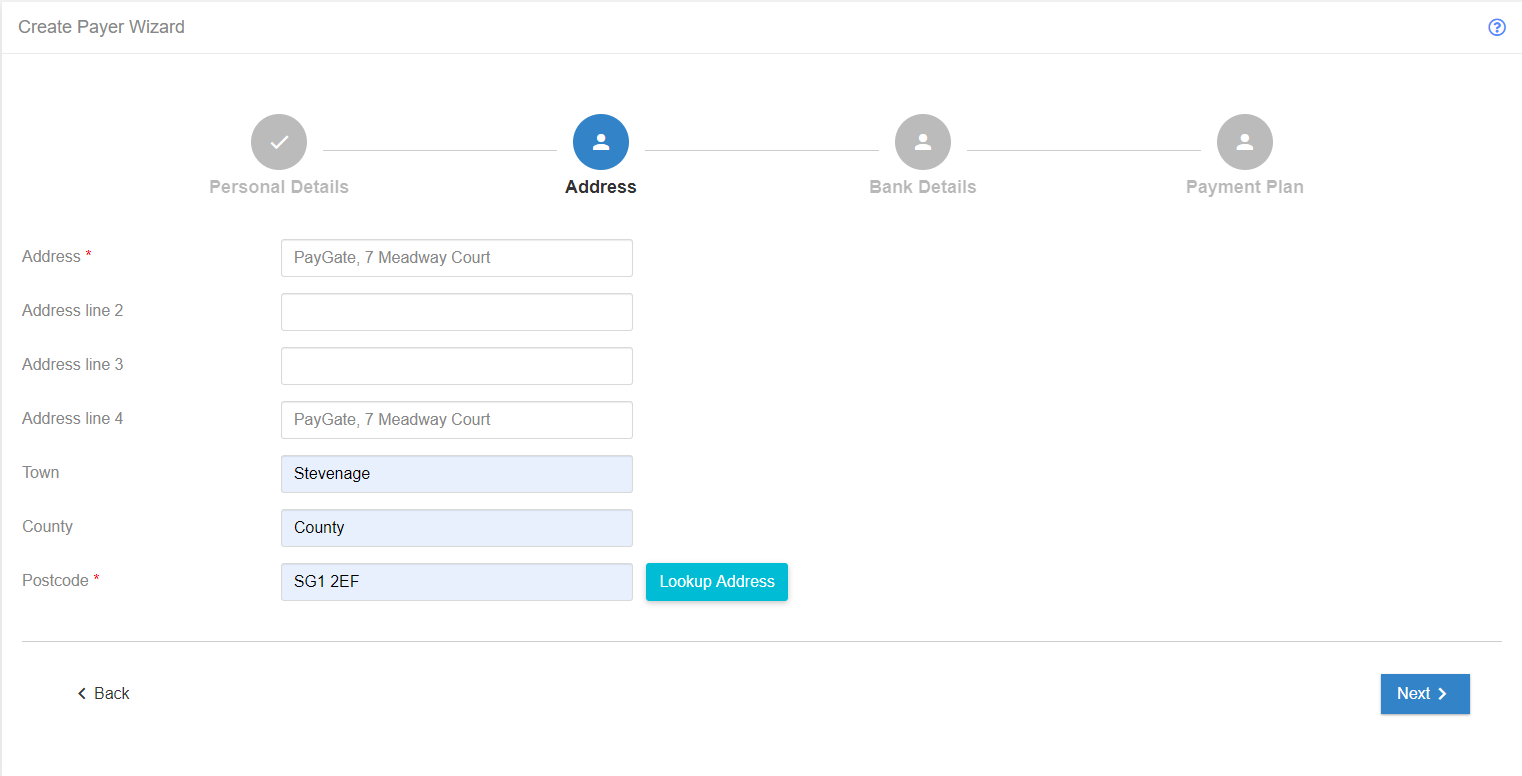
Once an address is selected, or cannot be found, the user is presented with a form containing the retrieved address information which can be modified if necessary before continuing to the next step

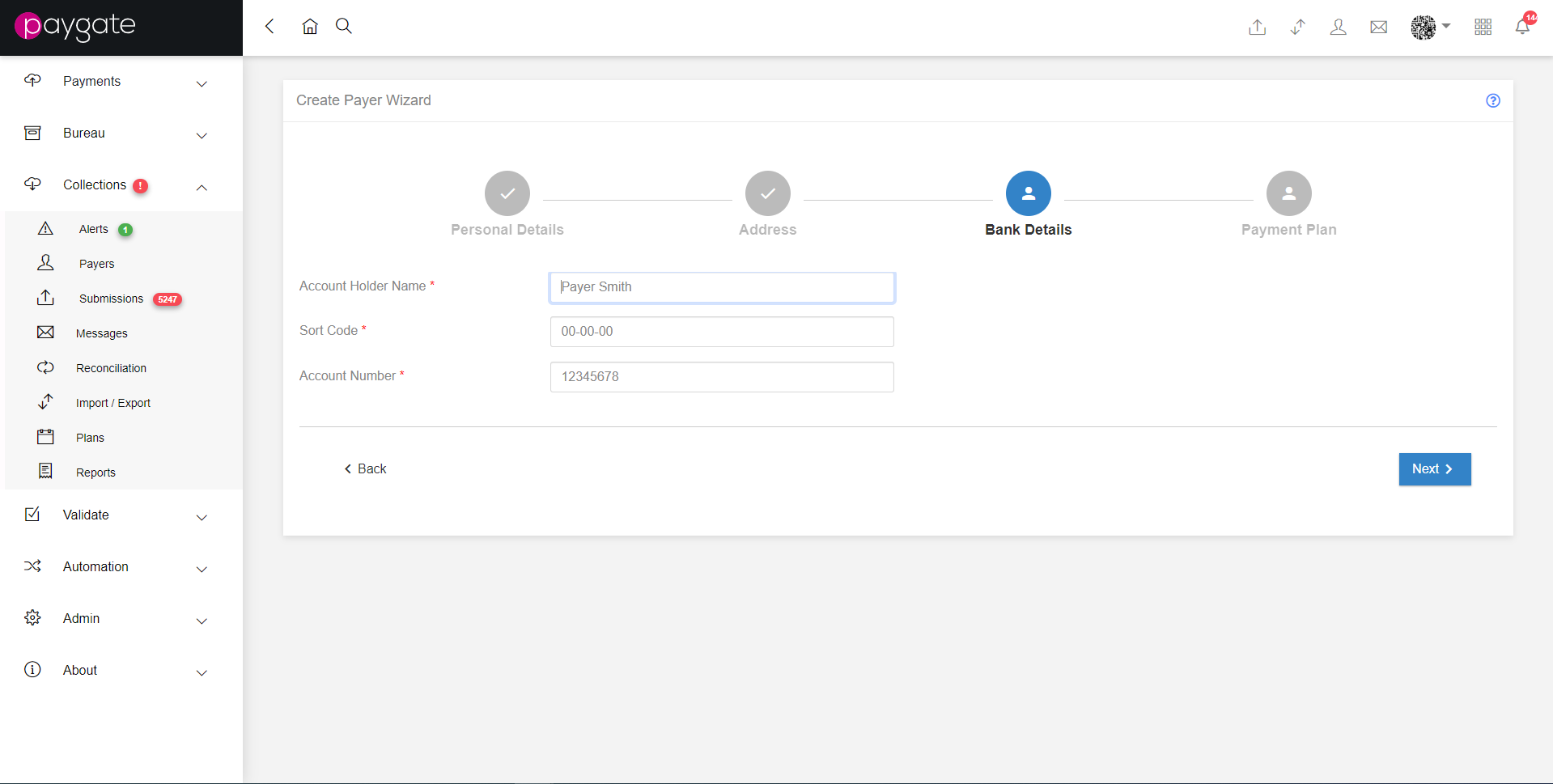
The next step allows the user to enter the Payer Bank Details. the Account Holder Name will be pre populated with the values provided during the Personal Details step, but they may be modified if necessary. The Payer Sort Code needs to be a six digit number, and the Account Number needs to be six to eight digits, otherwise the step will be invalid.
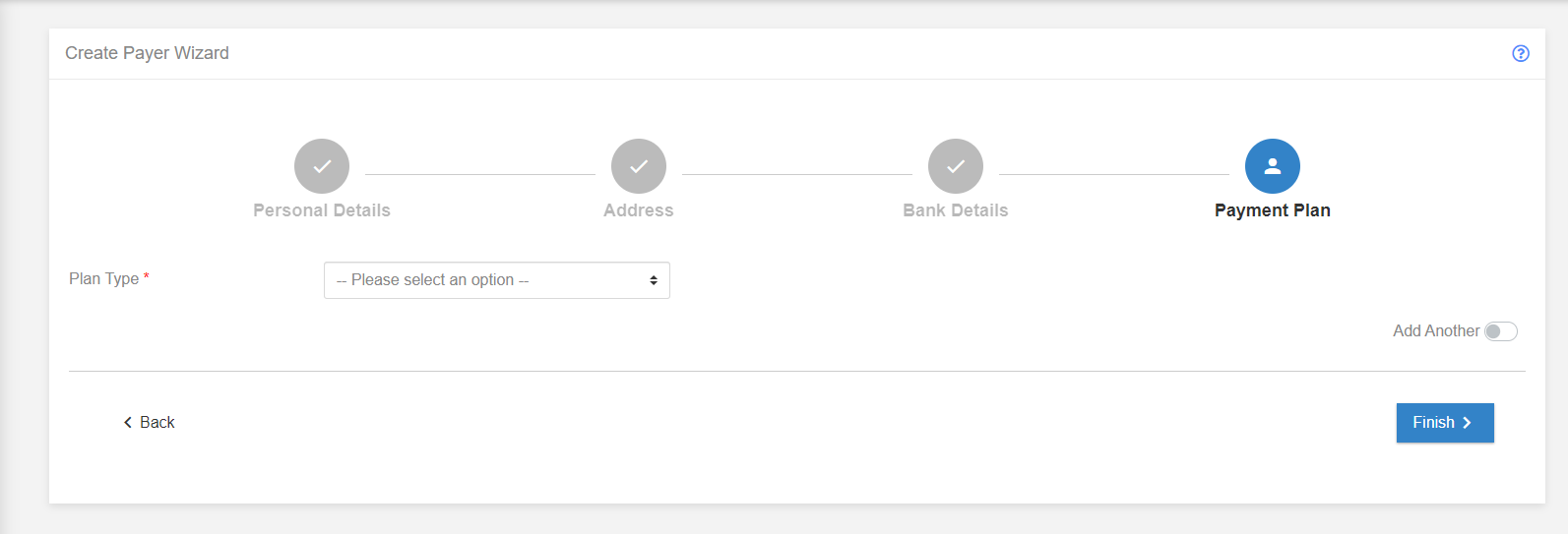
The next step is for providing the Payer Payment Plan details. Selecting an existing plan template will display the details that may then be modified.
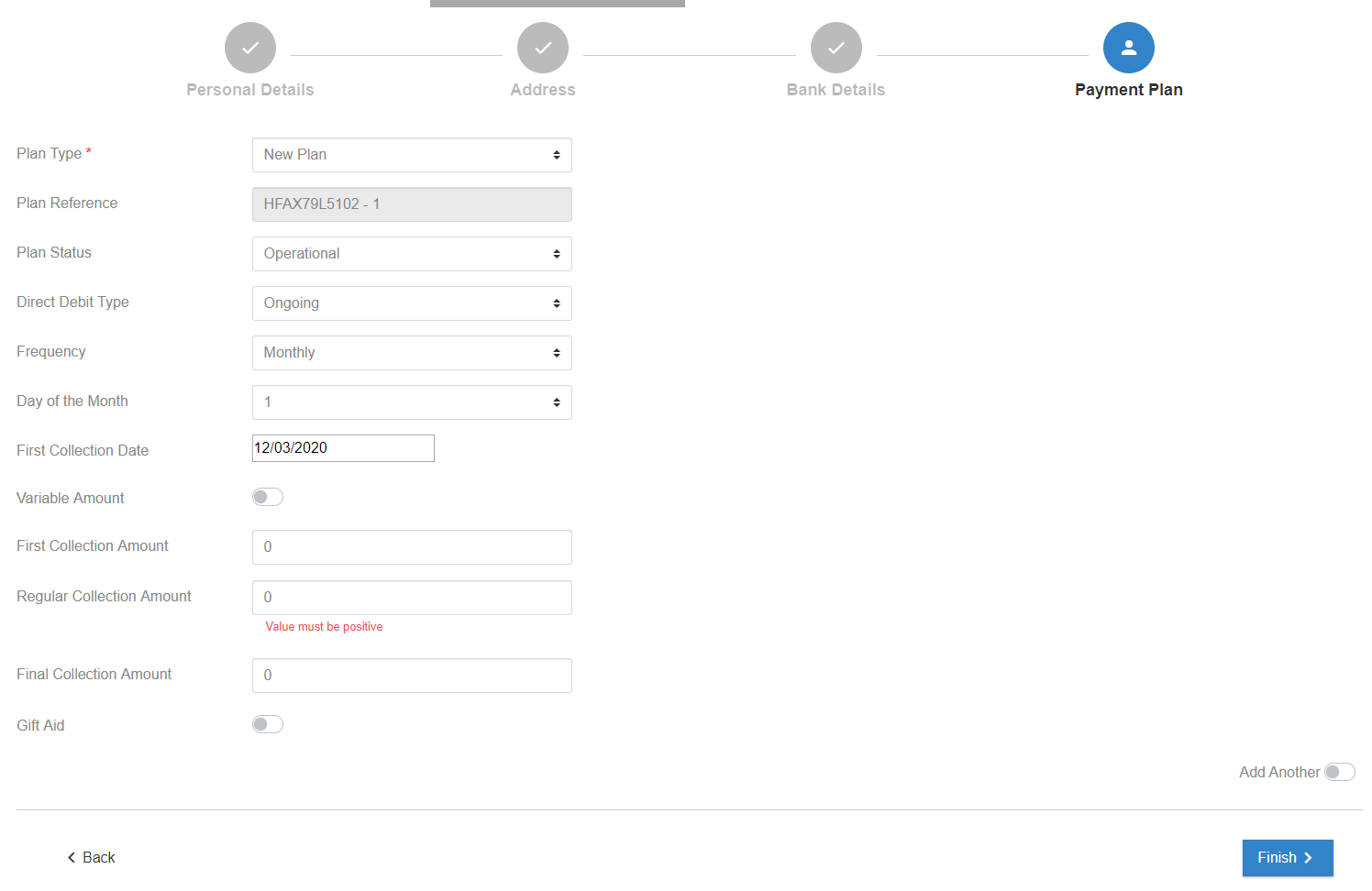
Once a plan has been selected, the details may be modified. It is important to ensure that a Regular Collection Amount has been specified and that the first payment date is in the future.
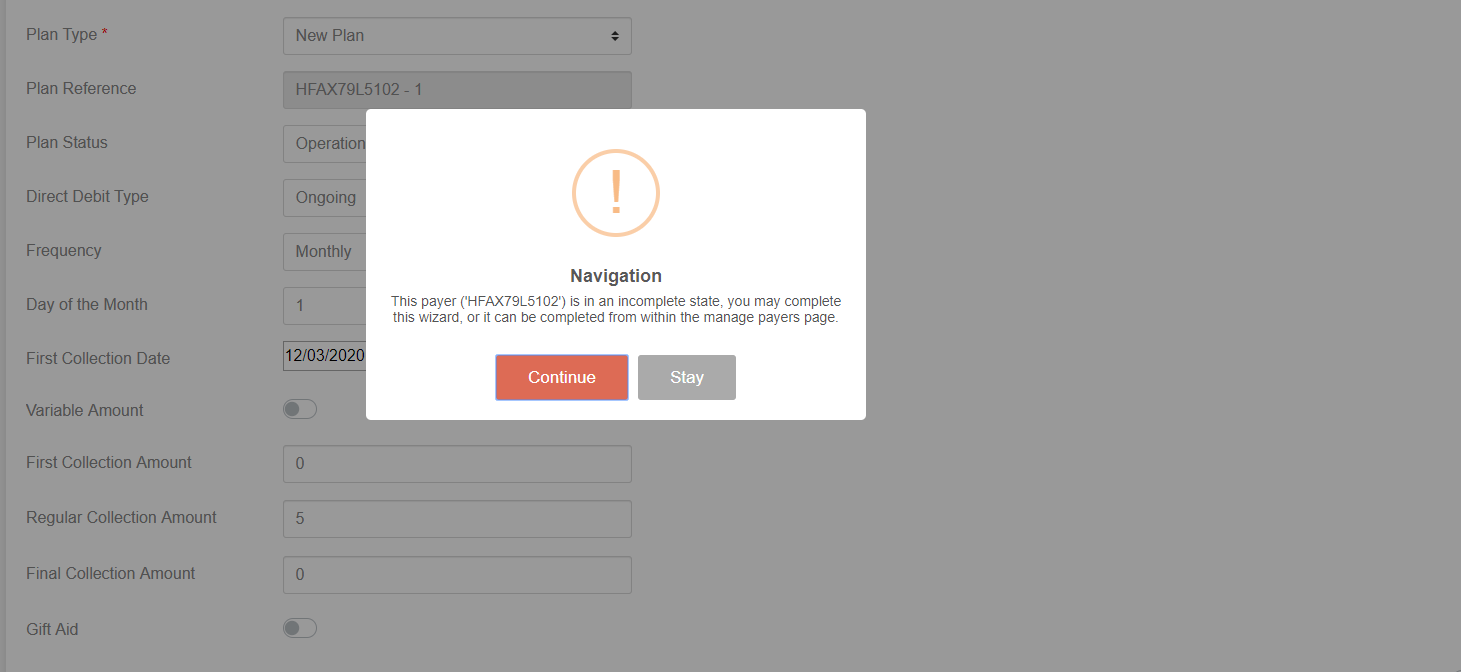
Upon pressing hte If any details have been missed, or if the Payer data is invalid then the user will be prompted that the payer is incomplete.

Setting the “Add Another” switch to true enables the Payer Creation Wizard to return to step one to create a new Payer upon completion, otherwise the user will be directed to the Manage Payers page. Incomplete payers will be selectable on the Manage Payers page, where they can be completed or deleted.