
Edit Payer
Introduction
The Edit Payer page is reachable by selecting a Payer from the Manage Payers page, and it is used to manage numerous components of a Payer, such as updating their details, sending leaving notes regarding the payer, viewing the payer history, alerts and notes.
Main
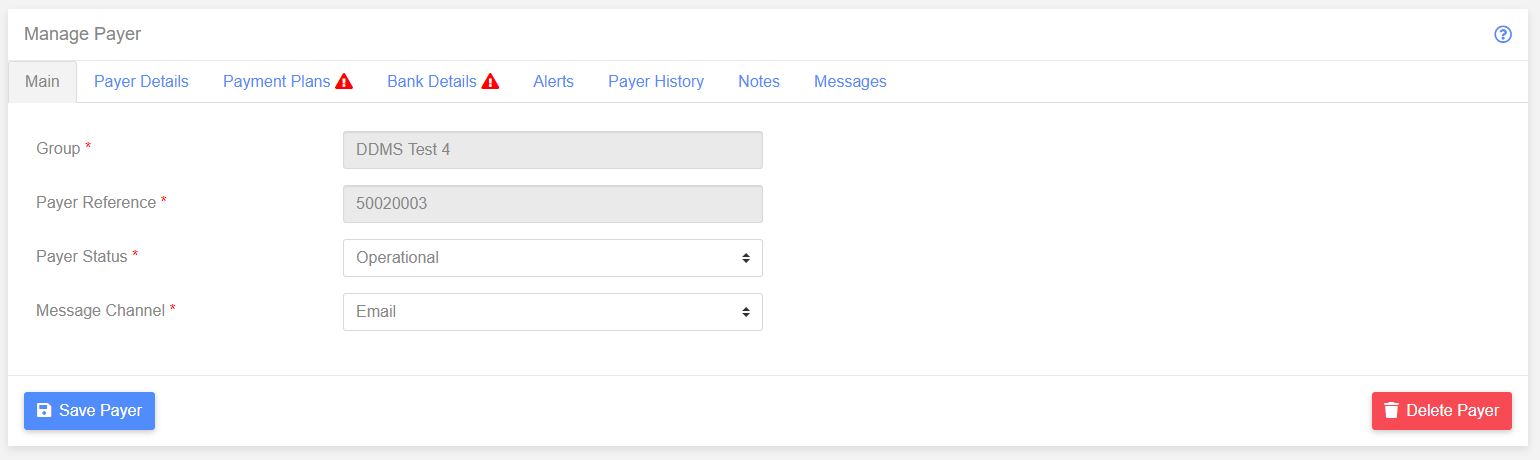
The Main tab allows the Payer Status and Message Channel to be modified, as well as allowing the Group and Payer Reference to be viewed (these are read only).
Payer Details
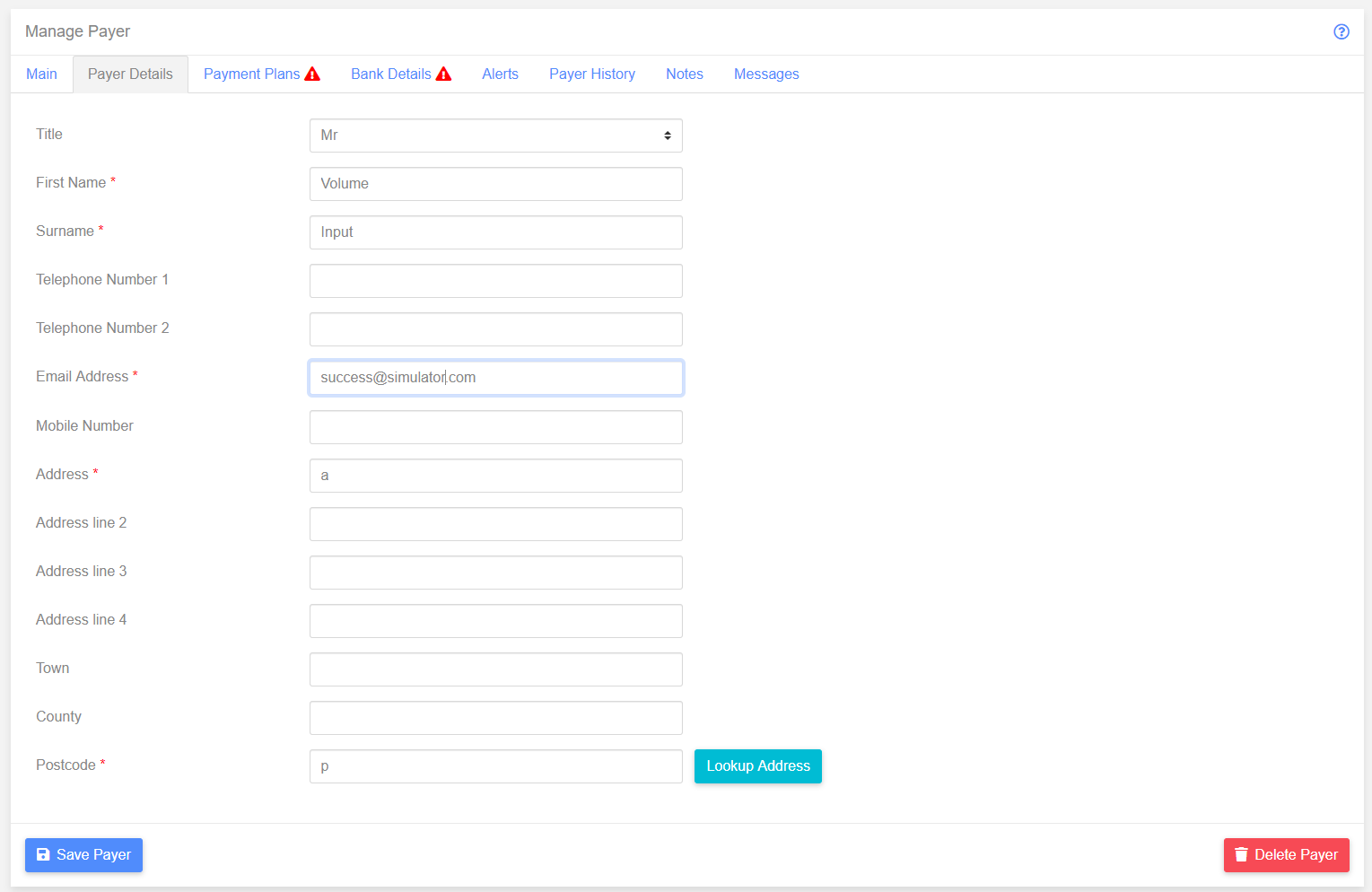
The Payer Details tab allows the address and identifying data for the payer to be added or modified. An address can be retrieved from a postcode using the Postcode field and the Lookup Address button.
Payment Plans
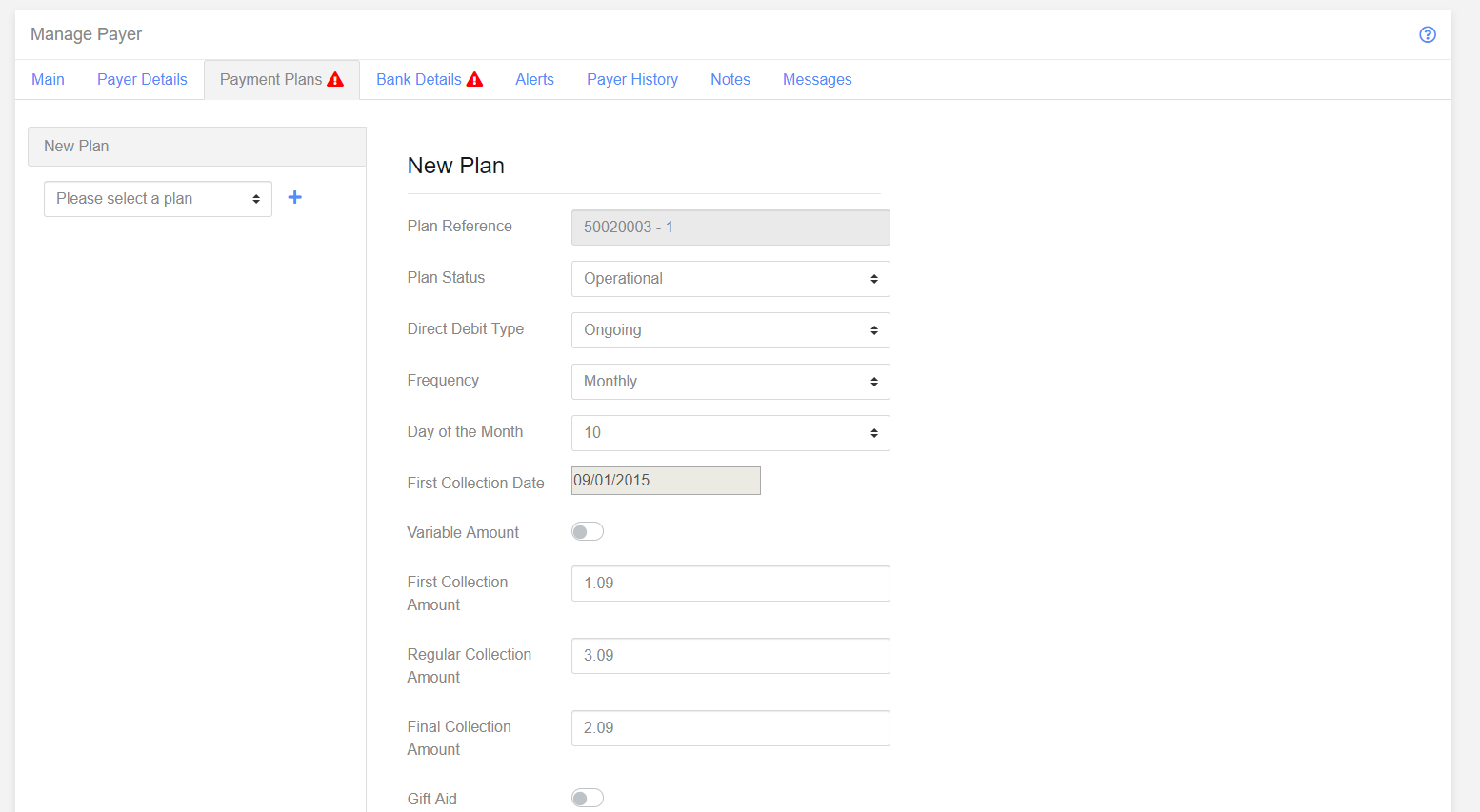
The Payment Plan tabs allows the current payment Plan used by the payer to be altered, and additional Plans to be added should the group be configured to allow it. Additional Plans are added by selecting a template from the dropdown list in the right column and clicking the “+” button.
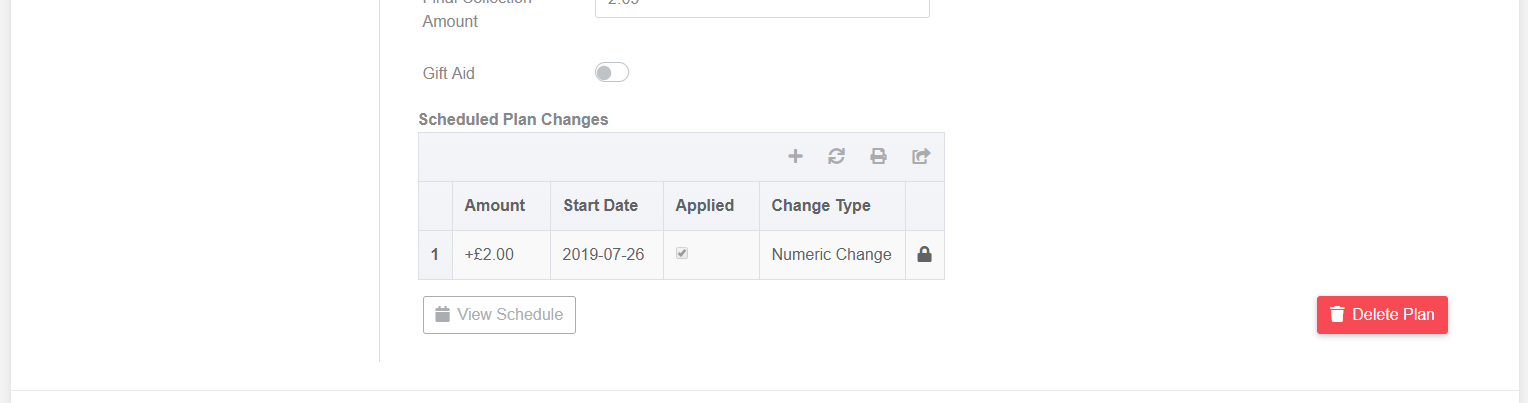
Future changes to the payment schedule can be added for the individual payer (this is normally configured at group level) by clicking the “+” button on the Scheduled Plan Changes table.
Bank Details
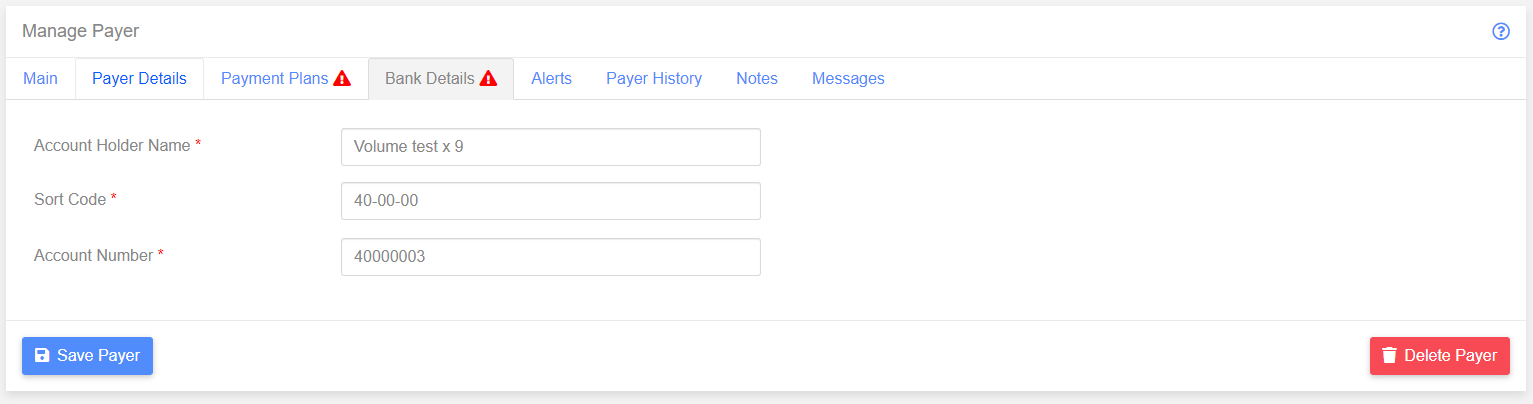
This section allows the Payer Bank Details to be edited. Changes to Bank Account Details trigger a modulus check to verify that the provided data is valid.
Alerts
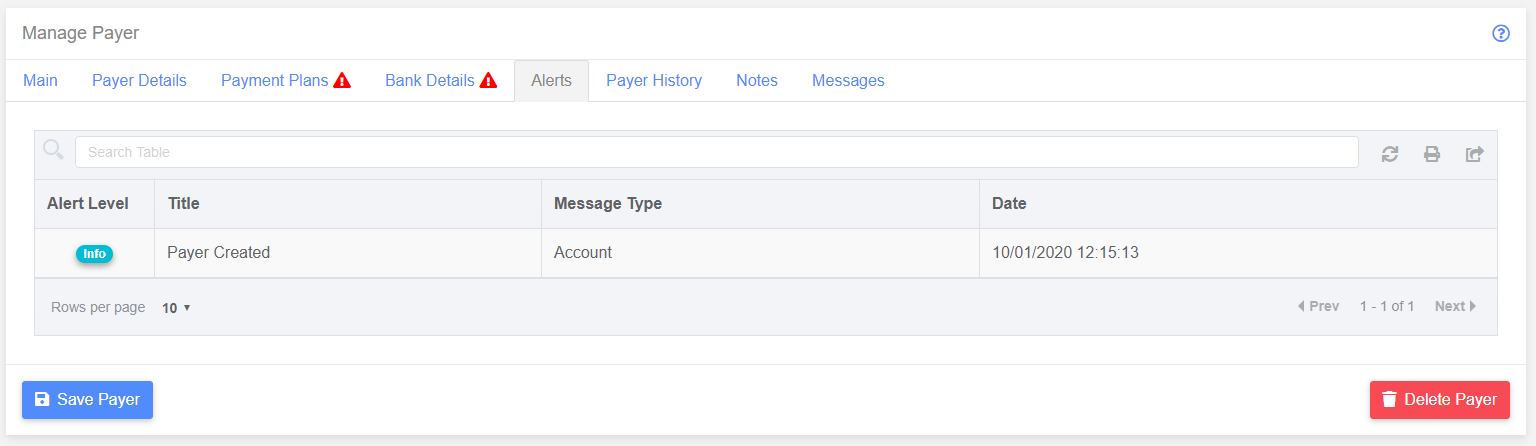
This section displays all the current alerts related to the Payer. Clicking on rows of the Alerts table will provide a more detailed page containing alert details.
Payer History
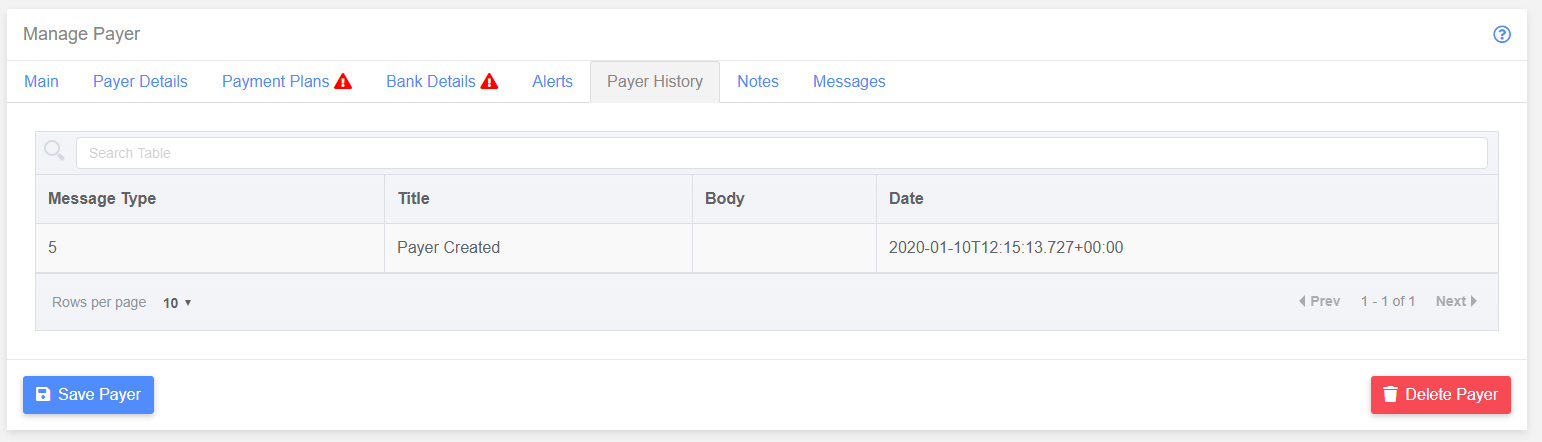
This section displays the Payer History. Clicking on rows of the Payer History table will provide a more detailed page containing details of the selected History item.
Notes
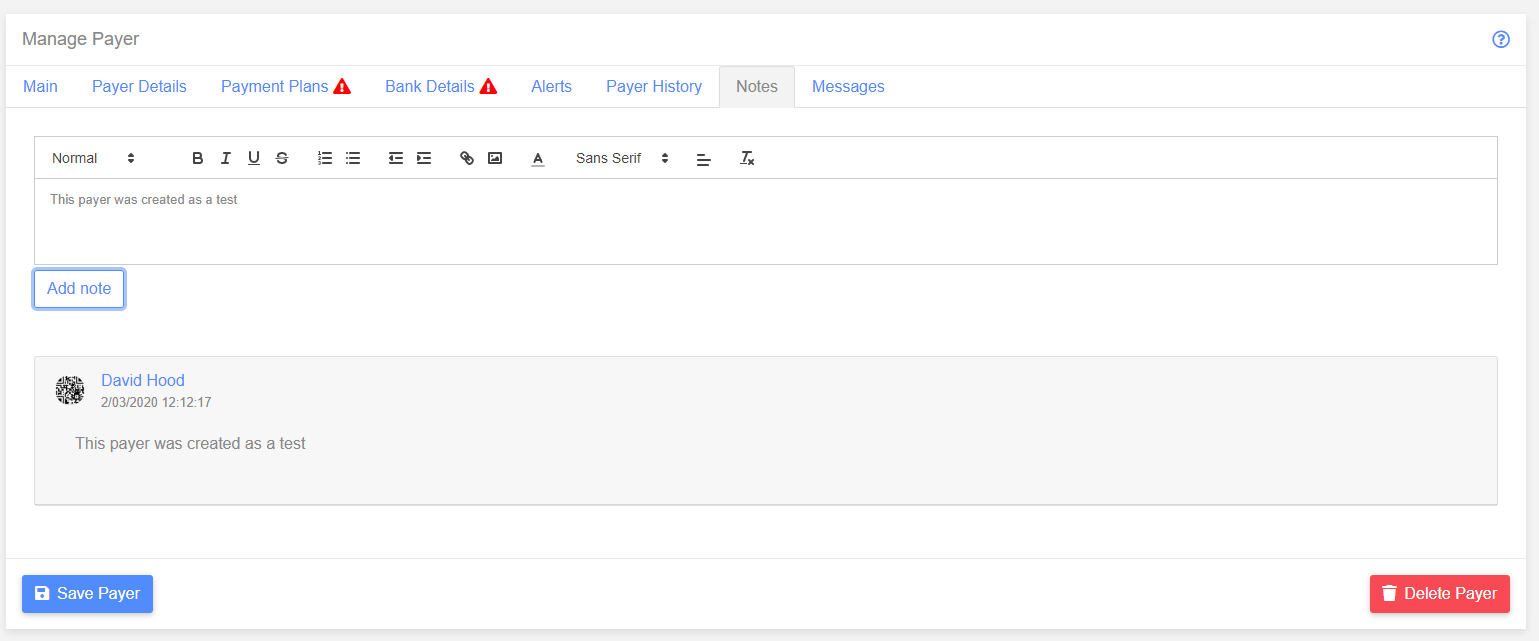
The Notes section allows users to leave messages for other users of the system, such as details of out of system communication with the Paye.
Messages
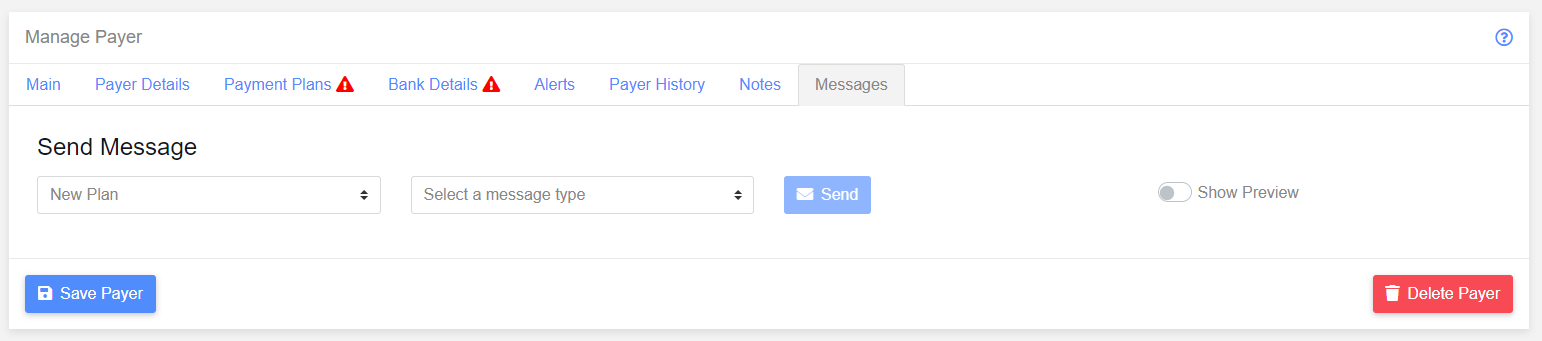
This section allows messages to be sent to they payer using the configured channel (i.e. SMS, Email or Letter). The message options vary dependent on the selected payment plan, so the plan in use must be selected first, following with the message type to send.