
Integration
Prerequisites
Integrating Collections Hosted Forms with a website requires several steps to be taken.
- A licence is required Hosted Forms.
- The domain for the page hosting the form needs to be added to the Allowed Urls table.
- A plan tempate needs to be defined with a generated API Key.
Adding an allowed URL
The URLs currently used by the customer are shown on the Hosted Form URLs table on the Admin\Customer\Allowed Urls page accessible through the menu:
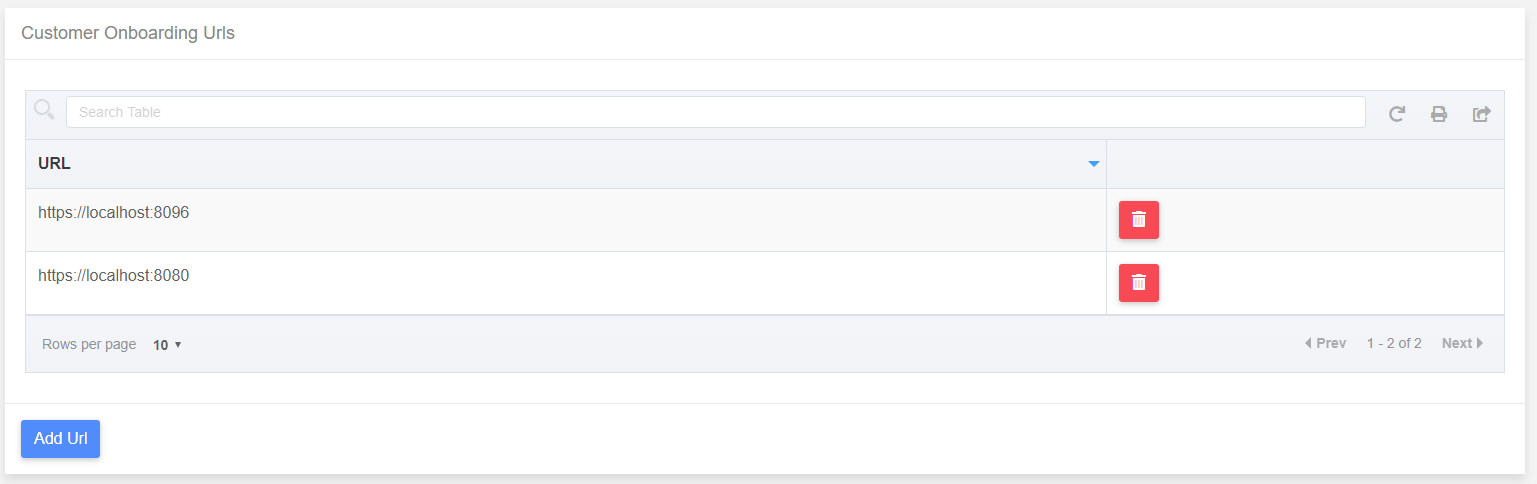 Adding a URL to table by pressing the Add Url button and entering data into the Add Url dialog will make that domain usable with the product.
Plan Template definition
Once a plan tempate needs to be defined, copy the Generated API Key so that it can be used later. For testing, this API Key can be used in client side code allow use of the Hosted Form, but it is recommended that it is used in server side code to generate a Session ID that will be used for each individual payer sign up.
Generating a Session ID.
The recommended approach to generating a Session ID to be used for each payer is to generate it in server side code. A web request needs to be sent to the Collections Public API using the Generated API Key for a specified plan, using the API Key in the request header. In the below example, Node.js is used to get a session id.
// express - to run js as web server
var express = require('express')

// axios to send web requests
var axios = require('axios')

// cors to allow cross origin scripting
var cors = require('cors')

// create a new instance of express
const app = express();

// configure the server to allow CORS.
app.use(cors())

// configure POST request from the hosted web page to create a session.
app.post('/api/createsession', async (req, res) => {
  let request = req.body
  try {
    // send request to API to create session.
    let response = await axios.post(`https://collections.paygate.cloud/api/payeronboarding/createsession`, {}, { headers: {
      'X-PAYGATE-ONBOARDING-KEY':'###### YOUR API KEY #####',
      'Origin': '##### YOUR DOMAIN #####',
      'Referer': '##### YOUR DOMAIN #####'
    }})

    // pass the session id back in the response body.
    res.status(200).send(response.data)
  } catch (err) {
    console.log(err)
    res.status(err.response.status).send(err.response.data)
  }
})
const PORT = process.env.CUSTOM_PORT || 5002
// Make server listen on specified port.
app.listen(PORT)
Additional Session Options
It is possible to provide additional settings to the product when creating a session to override settings dynamically. The following options are currently available:
firstamount The first collection amount regularamount the regular collection amount lastamount the final collection amount paymentday the day of the month the amount is collected
These options are passed in the request body when the session is created.
  // send request to API to create session.
  let response = await axios.post(`https://collections.paygate.cloud/api/payeronboarding/createsession`, { firstamount: 12, regularamount: 23.34, lastamount: 2, paymentday: 3 }, { headers: {
    'X-PAYGATE-ONBOARDING-KEY':'###### YOUR API KEY #####',
    'Origin': '##### YOUR DOMAIN #####',
    'Referer': '##### YOUR DOMAIN #####'
  }})
In the above example, each of the values is changed, but it is possible to only provide a single value, or none at all.
  // send request to API to create session.
  let response = await axios.post(`https://collections.paygate.cloud/api/payeronboarding/createsession`, { firstamount: 12 }, { headers: {
    'X-PAYGATE-ONBOARDING-KEY':'###### YOUR API KEY #####',
    'Origin': '##### YOUR DOMAIN #####',
    'Referer': '##### YOUR DOMAIN #####'
  }})
Using The generated Session ID
Integrating the hosted form into a webpage requires the page to be able to run jquery, and be able to access the script used to run the form.
Below is a HTML which will be altered to render the form render the form.
<!DOCTYPE html>
<html lang="en">
  <head>
    <meta charset="utf-8">
    <meta http-equiv="X-UA-Compatible" content="IE=edge">
    <meta name="viewport" content="width=device-width,initial-scale=1.0">
    <title>Form Test Page</title>
  </head>
  <body>
    <div id="app"></div>
  </body>
</html>
The form will be altered to include references to Jquery, and the Hosted Collections form script.
<!DOCTYPE html>
<html lang="en">
  <head>
    <meta charset="utf-8">
    <meta http-equiv="X-UA-Compatible" content="IE=edge">
    <meta name="viewport" content="width=device-width,initial-scale=1.0">
    <title>Form Test Page</title>
  </head>
  <body>
    <div id="app"></div>
    <script src="https://code.jquery.com/jquery-3.5.0.min.js" integrity="sha256-xNzN2a4ltkB44Mc/Jz3pT4iU1cmeR0FkXs4pru/JxaQ=" crossorigin="anonymous"></script>
    <script src="https://localhost:44356/cdn/paygate-collections-form-v3.js"></script>
  </body>
</html>
This page will then be altered so that when it loads, it will send a request to the previously defined node service to get a Session ID.
<!DOCTYPE html>
<html lang="en">
  <head>
    <meta charset="utf-8">
    <meta http-equiv="X-UA-Compatible" content="IE=edge">
    <meta name="viewport" content="width=device-width,initial-scale=1.0">
    <title>Form Test Page</title>
  </head>
  <body>
    <div id="app"></div>
    <script src="https://code.jquery.com/jquery-3.5.0.min.js" integrity="sha256-xNzN2a4ltkB44Mc/Jz3pT4iU1cmeR0FkXs4pru/JxaQ=" crossorigin="anonymous"></script>
    <script src="https://localhost:44356/cdn/paygate-collections-form-v3.js"></script>
    <script>
      $(document).ready(function() {
        $.ajax({ url: '/api/createsession',
                 context: document.body,
                 method: 'POST',
                 success: function (response) {
                   console.log('Your session id is:' + response)
                 }})
      });
    </script>
  </body>
</html>
As the Session ID has been retrieved, it can now be used to render the hosted form to the page. In the success call, a new instance of the form is created, passing in the DOM selector for the element the form will be rendered into ‘#app’ and the session id.
<!DOCTYPE html>
<html lang="en">
  <head>
    <meta charset="utf-8">
    <meta http-equiv="X-UA-Compatible" content="IE=edge">
    <meta name="viewport" content="width=device-width,initial-scale=1.0">
    <title>Form Test Page</title>
  </head>
  <body>
    <div id="app"></div>
    <script src="https://code.jquery.com/jquery-3.5.0.min.js" integrity="sha256-xNzN2a4ltkB44Mc/Jz3pT4iU1cmeR0FkXs4pru/JxaQ=" crossorigin="anonymous"></script>
    <script src="https://localhost:44356/cdn/paygate-collections-form-v3.js"></script>
    <script>
      $(document).ready(function() {
        $.ajax({ url: '/api/createsession',
                 context: document.body,
                 method: 'POST',
                 success: function (response) {
                   console.log('Your session id is:' + response)
                   var form = new PaygateOnboarding('#app', { sessionId: response })
                 }})
      });
    </script>
  </body>
</html>
Once the startup script has executed, the form will be rendered into the container, but at this stage the dimensions may be off:
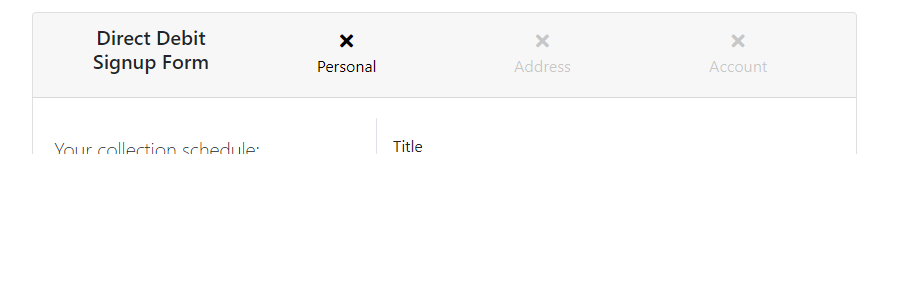
This can be addressed by applying some styles to the hosting page:
<!DOCTYPE html>
<html lang="en">
  <head>
    <meta charset="utf-8">
    <meta http-equiv="X-UA-Compatible" content="IE=edge">
    <meta name="viewport" content="width=device-width,initial-scale=1.0">
    <title>Form Test Page</title>
    <style>

        html,
        body {
          margin: 0;
          padding: 0;
          height: 100%;
          width: 100%;
        }

        #app {
          height: 100%;
          width: 100%;
        }

      </style>
  </head>
  <body>
    <div id="app"></div>
    <script src="https://code.jquery.com/jquery-3.5.0.min.js" integrity="sha256-xNzN2a4ltkB44Mc/Jz3pT4iU1cmeR0FkXs4pru/JxaQ=" crossorigin="anonymous"></script>
    <script src="https://localhost:44356/cdn/paygate-collections-form-v3.js"></script>
    <script>
      $(document).ready(function() {
        $.ajax({ url: '/api/createsession',
                 context: document.body,
                 method: 'POST',
                 success: function (response) {
                   console.log('Your session id is:' + response)
                   var form = new PaygateOnboarding('#app', { sessionId: response })
                 }})
      });
    </script>
  </body>
</html>
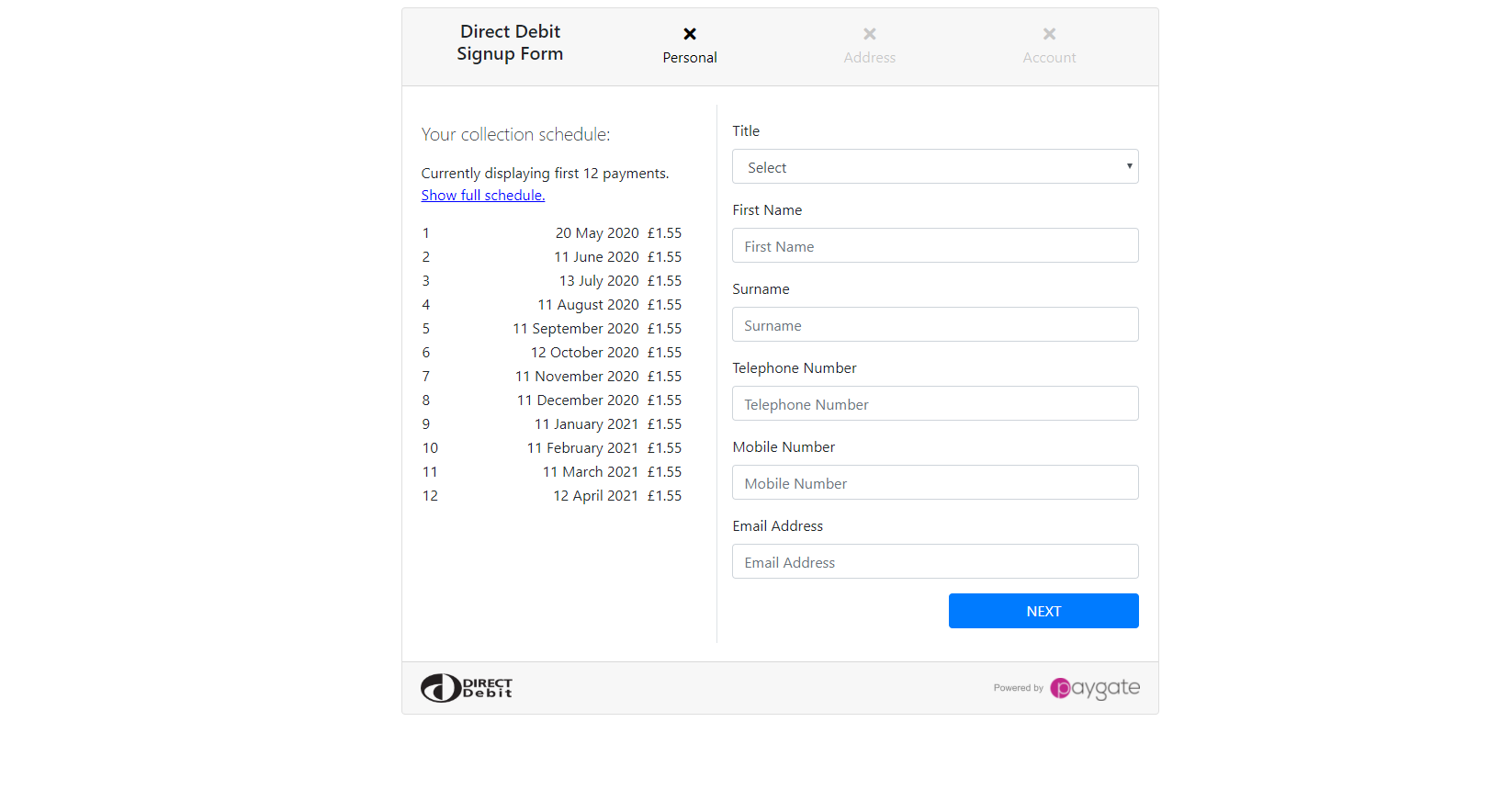
With correct dimensions provided, the form will render fully.
Options:
There are a number of parameters that can be passed to the form:
apiKey: The API Key generated within the product, this can be used to generate a session id, but it would mean exposing your api key in client html.
sessionId: The session ID generated by providing an api Key to the API. Without a session id, the form will not render.
successUrl: The web address to navigate to on success. On success, the form will navigate to the specified page, adding the payerid and returned code on the querystring.
cancelUrl: The web address to navigate to on cancellation.
onSuccess: Javascript method called on success, this can be done with an inline function when the code is used:
onSuccess: function (e) => { alert('success'); }
Or it can take methods that have been defined earlier:
  <script>
    function success (e) {
      alert('success');
    }

    function cancelled (e) {
      alert('cancelled');
    }
    $(document).ready(function() {
        $.ajax({ url: '/api/createsession',
                 context: document.body,
                 method: 'POST',
                 success: function (response) {
                   console.log('Your session id is:' + response)
                   var form = new PaygateOnboarding('#app', { sessionId: response, onSuccess: success, onCancel: cancelled })
                 }})
      });
  </script>
In the event object returned by the success event are two parameters:
- success: a Boolean value indicating success.
- payerid: the id of the returned payer
- code: A success/error code.
onCancel: Javascript method called on failure. In the event object returned by the success event are two parameter: - success: a Boolean value indicating success, expected to be false in the case of cancellation. - code: a success/error code.
isButton: If true, renders a button to the container instead of a form that redirects to the hosted form, as opposed to rendering it in page.
showSchedule: Indicates whether the payment schedule is displayed on the onboarding form
showTerms: Indicates whether the terms and conditions checkbox is displayed.
termsUrl: Specifies a web address where the terms and conditions can be viewed.
Email Verification Page
The email verification page that payers are directed to prior to activation can also be deployed into pages external to the product. The steps taken to display the form are similar to those used to display the hosted form, but “PaygateEmailVerification” is used instead of “PaygateOnboarding”.
<!DOCTYPE html>
<html lang="en">
  <head>
    <meta charset="utf-8">
    <meta http-equiv="X-UA-Compatible" content="IE=edge">
    <meta name="viewport" content="width=device-width,initial-scale=1.0">
    <title>Form Test Page</title>
    <style>

        html,
        body {
          margin: 0;
          padding: 0;
          height: 100%;
          width: 100%;
        }

        #app {
          height: 100%;
          width: 100%;
        }

      </style>

  </head>
  <body>
    <div id="app"></div>

    <script src="https://code.jquery.com/jquery-3.5.0.min.js" integrity="sha256-xNzN2a4ltkB44Mc/Jz3pT4iU1cmeR0FkXs4pru/JxaQ=" crossorigin="anonymous"></script>
    <script src="https://localhost:44356/cdn/paygate-collections-form-v3.js"></script>
    <!-- <script src="https://localhost:44355/cdn/paygate-collections-form.min.js"></script> -->
    <script>
      function success (e) {
        alert('success');
      }

      function cancelled (e) {
        alert('cancelled');
      }

      var emailWindow = new PaygateEmailVerification('#app', 'VERIFICATION ID',  { onSuccess: success, onCancel: cancelled })
    </script>
  </body>
</html>
The second parameter passed to the PaygateEmailVerification constructor is the verification id. This needs to be passed in.
By default, the email sent to payers to verify their email address directs them to a page hosted within the product, but this can be changed in the messaging templates section of the product. When directing users to a email verification page, ensure that the [VerificationId] is in the template so it can be passed to the PaygateEmailVerification object.
Email Verification Options:
There are a number of parameters that can be passed to the verification object:
verificationId: The Verification ID provided in the email.
successUrl: The web address to navigate to on success. On success, the form will navigate to the specified page, adding the payerid and returned code on the querystring.
cancelUrl: The web address to navigate to on cancellation.
onSuccess: Javascript method called on success, this can be done with an inline function when the code is used:
onSuccess: function (e) => { alert('success'); }
Or it can take methods that have been defined earlier:
  <script>
    function success (e) {
      alert('success');
    }

    function cancelled (e) {
      alert('cancelled');
    }
    $(document).ready(function() {
        $.ajax({ url: '/api/createsession',
                 context: document.body,
                 method: 'POST',
                 success: function (response) {
                   console.log('Your session id is:' + response)
                   var form = new PaygateEmailVerification('#app', 'VERIFICATIONID', { onSuccess: success, onCancel: cancelled })
                 }})
      });
  </script>
In the event object returned by the success event are two parameters:
- success: a Boolean value indicating success.
- code: A success/error code.
onCancel: Javascript method called on failure. In the event object returned by the success event are two parameter: - success: a Boolean value indicating success, expected to be false in the case of cancellation. - code: a success/error code.