
Update Variable Amounts
Introduction
Updates to Plans which use a Variable Amount can have the next payment amount set using a Workflow, or alternatively using the Update Variable Amounts page.
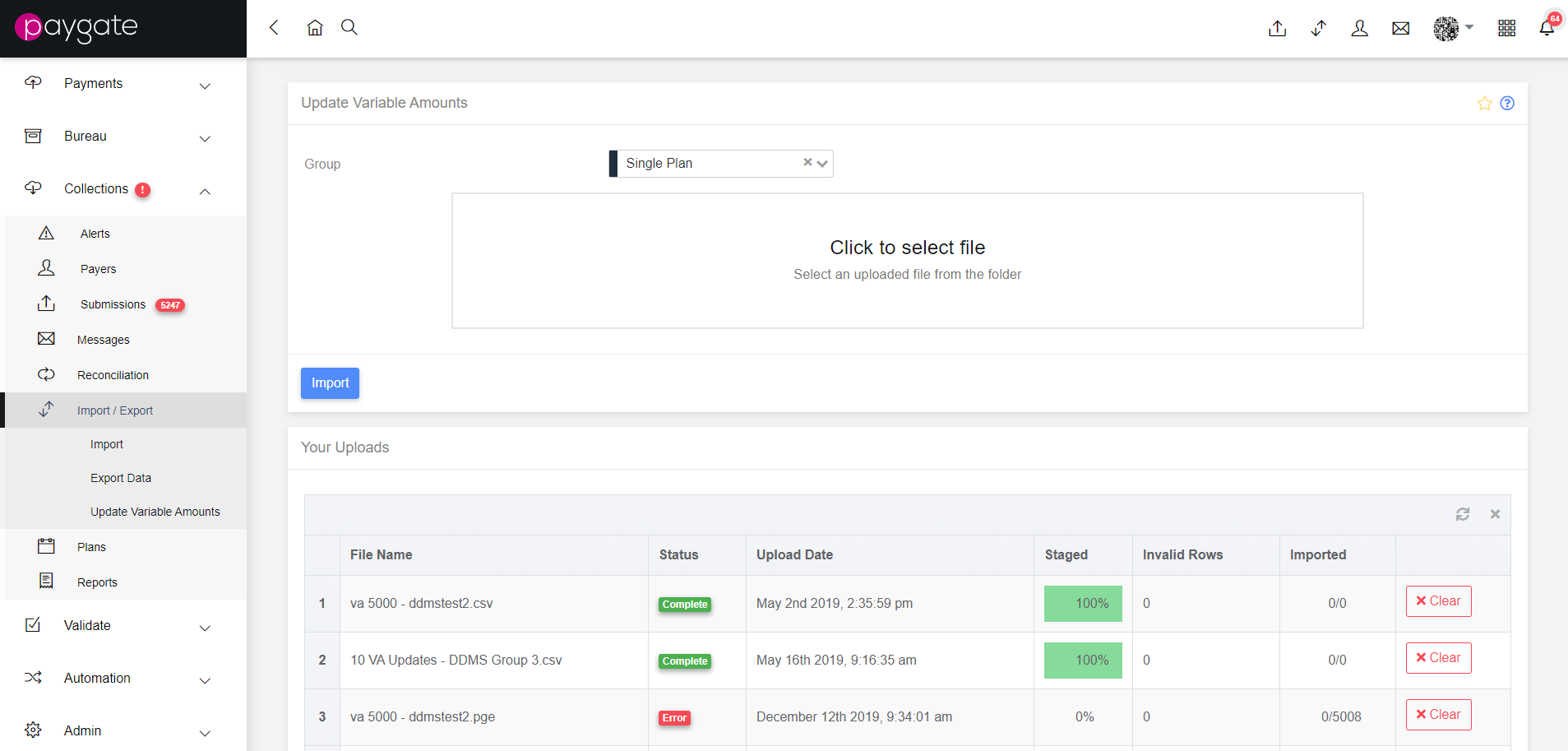
Firstly, the group which requires payment updates needs to be set using the drop down control at the top of the form.
Depending on how your groups are configured to import files, selecting a file to upload can be done using one of three ways:
Restricted File Browser
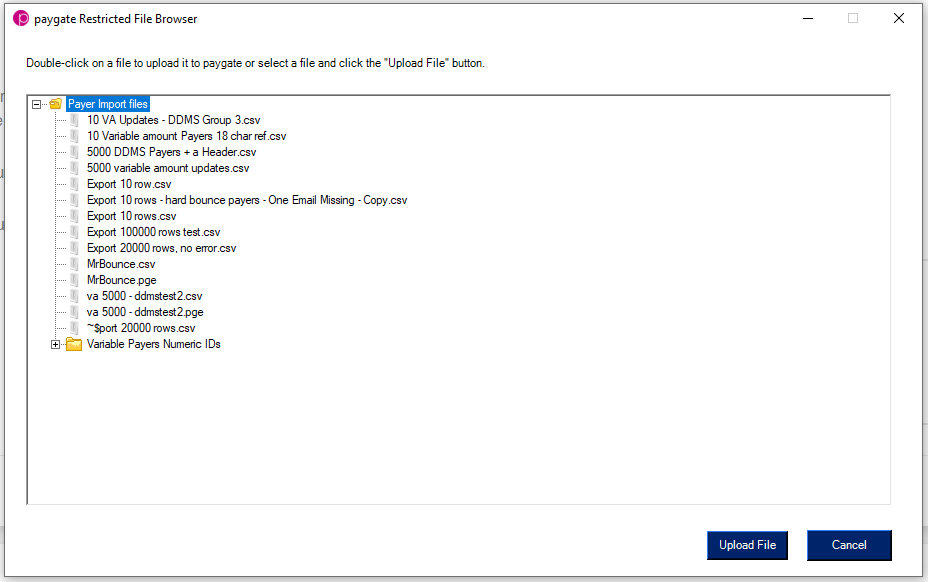
The restricted file browser is configured to only access files from a specified folder on the user’s computer. This dialog is loaded by clicking on the box with “Click to select file” labelled on it.
Server File Browser
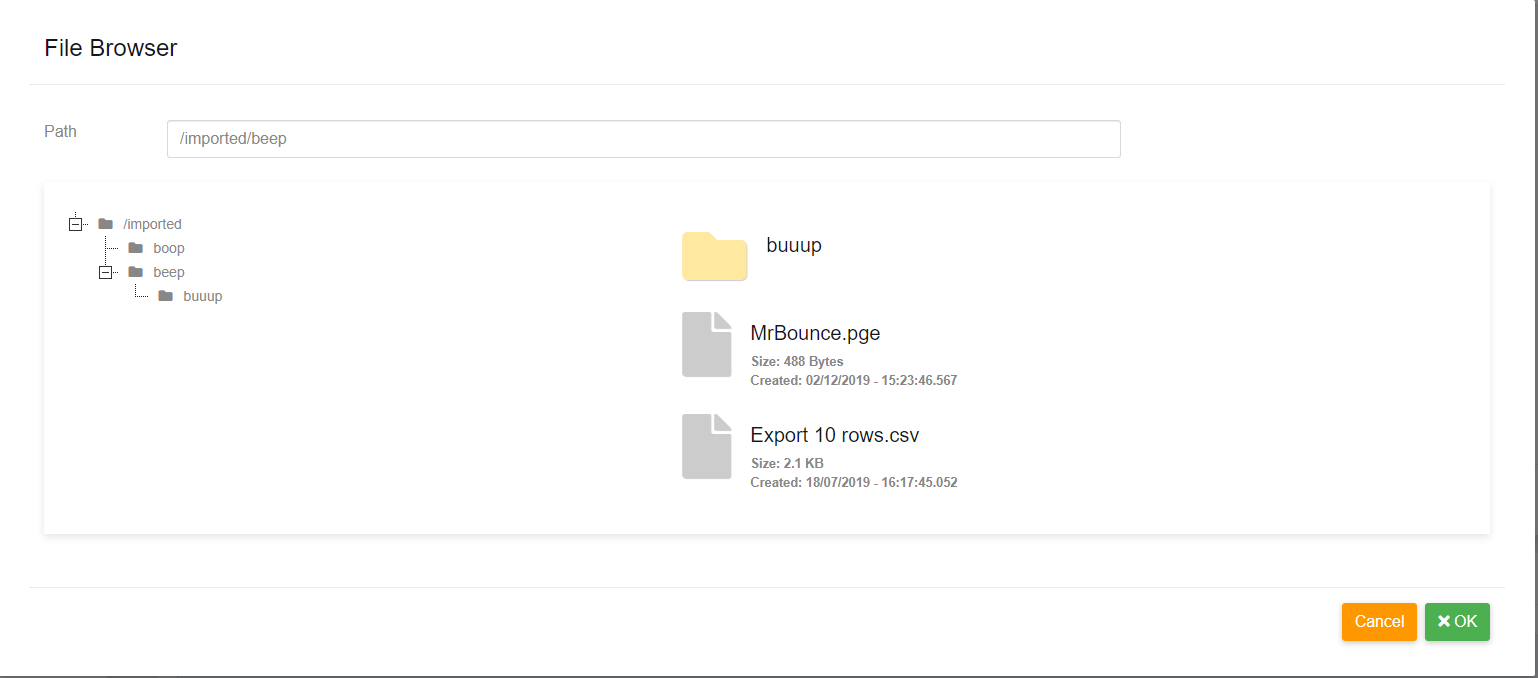
The server file browser points to uploaded files in the customer’s specific public data folder, and has had the data placed there using an external process, such as Paygate Agent or a Workflow. This dialog is loaded by clicking on the box with “Click to select file” labelled on it.
File system Browser
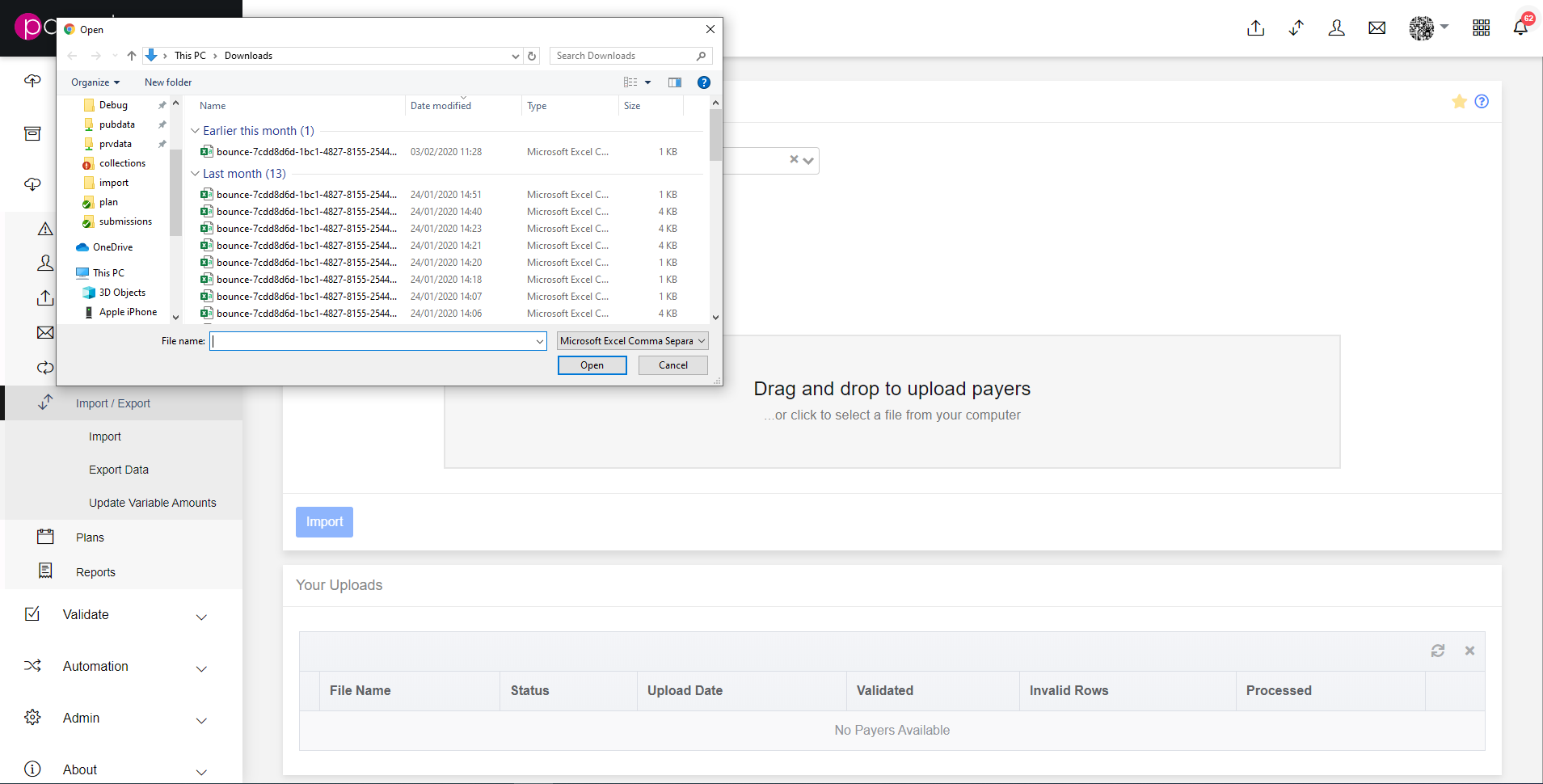
Groups that allow file system access will be presented with different text in file file upload box, “Drag and drop to upload payers …or click to select a file from your computer.” This will allow file system access by clicking it, or by dragging a file from the user’s desktop or folder.
Uploading
Once a file has been selected, it will be visible in the outlined box in the dialog. Multiple files can be added this way.
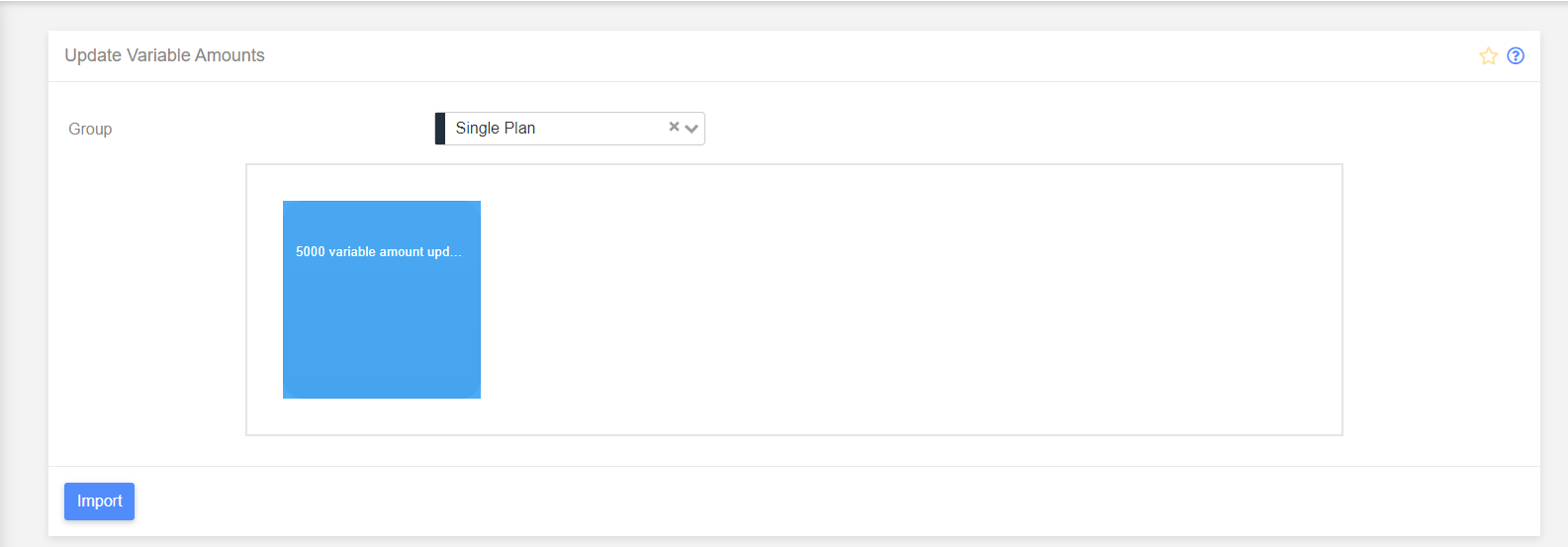
Uploading a file will also enable the “Import” button, when clicked the button will trigger the upload process, which will import the variable amounts into they system. Imported files will be visible in the table below, where they will be queued, then validated then processed.

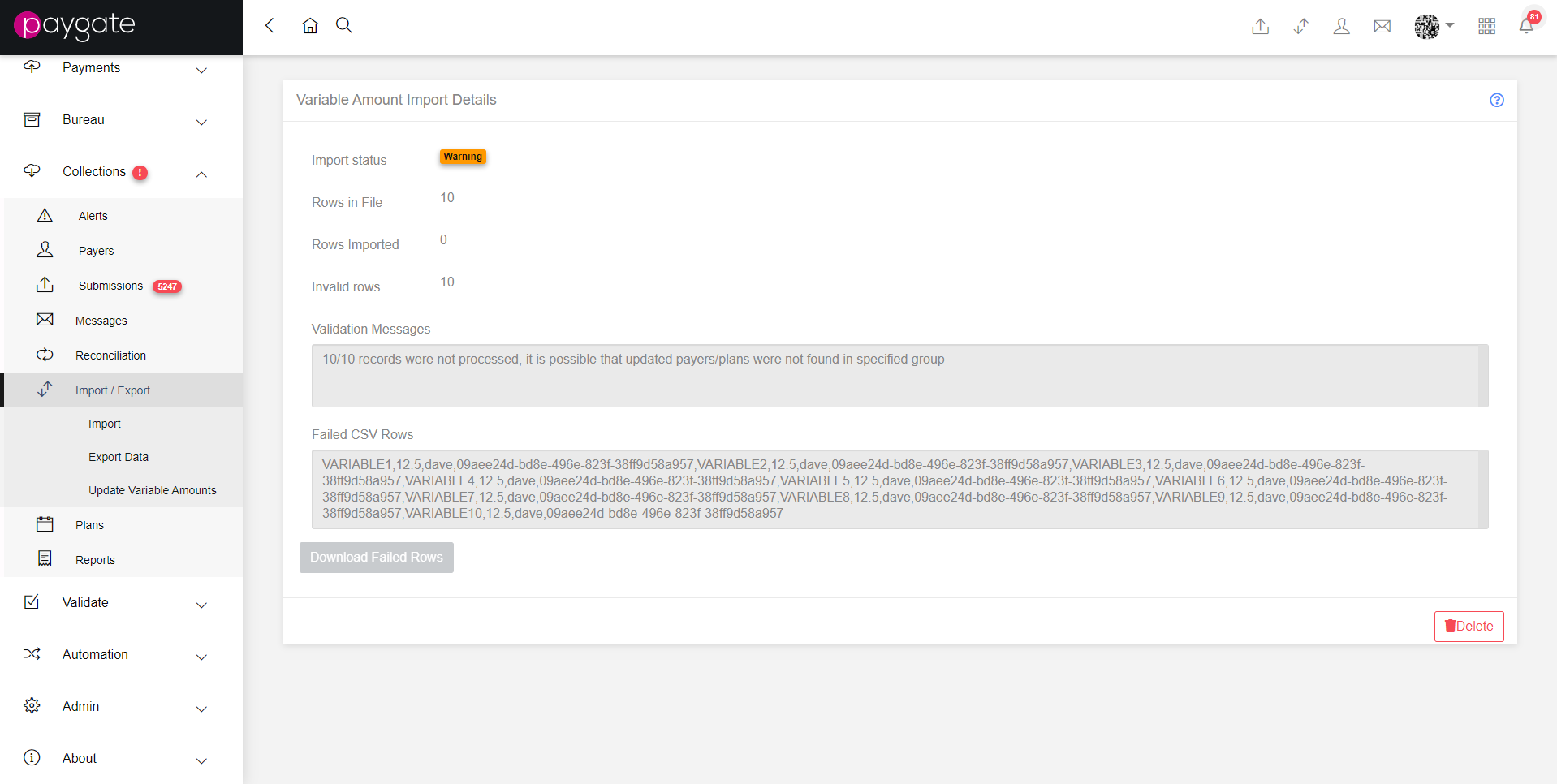
Variable Amount Import Details
Clicking on the uploading row will take the user to the Import Details page, that has summary data on the upload, as well as validation messages and failed CSV rows that can be saved and then re-uploaded.
File Format
The uploaded file must be a CSV, and must have these fields in this order:
- Reference - The payer reference requiring an update.
- Amount - The update amount.
- Plan Name - The plan name that needs to be updated, as it is possible to have multiple plans per payer.